How do I make a custom route on Google Maps for a road trip?
To make a custom route for a road trip on Google Maps, start by entering your first destination. Then, click 'Add stop' repeatedly to input all your desired locations in the order you plan to visit them. Google Maps automatically calculates the route. You can drag and drop stops to reorder them, ensuring your road trip itinerary is optimized for efficiency and enjoyment across the U.S.Can I get turn-by-turn directions for my custom route?
Yes, once you have created and finalized your custom route with multiple stops in Google Maps, you can absolutely get turn-by-turn directions. Simply click the 'Start' or 'Directions' button, and Google Maps will guide you through each leg of your personalized journey, providing vocal prompts and visual cues for every turn, ensuring you stay on track from start to finish.What is the difference between Google Maps and Google My Maps?
Google Maps is primarily for standard navigation, searching locations, and getting immediate directions. Google My Maps, however, is a separate tool designed for creating, saving, and sharing highly customized maps with multiple layers, markers, and detailed descriptions. My Maps is ideal for intricate planning, personal travel logs, or collaborative mapping projects, offering more control over map content.How can businesses use custom directions on Google Maps?
Businesses can use custom directions on Google Maps to optimize delivery routes, plan service calls, and manage field employee logistics. By adding multiple client locations as stops, businesses can create the most efficient sequence, saving time and fuel. Sharing these optimized routes ensures consistency, improves service efficiency, and enhances overall operational planning for companies nationwide.Can I customize the start and end points of a route on Google Maps?
Yes, you can fully customize both the start and end points of any route on Google Maps. When you open the directions feature, you'll see fields for your origin and destination. You can manually type in any address, landmark, or even select your current location. This flexibility allows you to plan routes precisely from any starting point to any final destination you desire.Mastering custom directions on Google Maps empowers U.S. users to personalize travel plans, optimize business logistics, and share unique itineraries with ease. This comprehensive guide unveils how to effectively leverage Google Maps for multi-stop journeys, event planning, and efficient delivery routes, making your navigation smarter and more tailored. Discover essential tips for adding multiple destinations, rearranging stops, and understanding advanced features that transform standard mapping into a powerful organizational tool. Whether you are planning a cross-country road trip, coordinating local deliveries, or simply want to share a specific path with friends, learning these customization techniques is invaluable. Understand how to save, share, and manage your personalized maps, ensuring you always have the most relevant and efficient routes at your fingertips. This resource helps you decide, plan, and execute journeys with precision, saving time and reducing stress on every trip.
Frequently asked questions
How do I add multiple destinations to Google Maps on mobile?
On your mobile Google Maps app, enter your first destination. Then, tap the three dots menu or 'Add stop' and input additional locations. You can rearrange stops by dragging them. The app will calculate the optimal route, providing turn-by-turn navigation for your multi-stop journey directly from your device.
Can Google Maps optimize a route for me with many stops?
Yes, Google Maps can help optimize a route with multiple stops. After adding several destinations, you can manually reorder them for efficiency. While it does not always provide the single best 'traveling salesman' solution, it will recalculate directions for the fastest path based on your chosen sequence, significantly streamlining complex trips.
How do I share a custom route I made on Google Maps with others?
To share a custom route, first create your multi-stop directions in Google Maps. Then, locate the 'Share' option, usually found in the menu or as a dedicated icon. This generates a unique link to your personalized map. You can then copy and paste this link to share it via email, text, or social media, allowing others to view your itinerary.
Is it possible to print custom directions from Google Maps?
Yes, you can easily print custom directions from Google Maps. After planning your multi-stop route on a desktop browser, look for the 'Print' icon or option within the directions interface. This will generate a printable version of your detailed itinerary, including all stops and turn-by-turn instructions, perfect for offline reference during your journey.
Can I create custom routes for walking or biking on Google Maps?
Absolutely. Google Maps supports custom routes for various modes of transport, including walking and biking, in addition to driving. After setting your destinations, select the walking or biking icon instead of the car icon. You can then add multiple stops and customize your pedestrian or cycling route just as you would for a car journey, ensuring a tailored path.
What if I need more than 10 stops for my custom Google Maps route?
If your custom route requires more than 10 stops, Google My Maps is the ideal solution. It's a free tool that lets you create highly detailed maps with hundreds of points, custom layers, and rich descriptions. You can then share and even collaborate on these complex maps, making it perfect for extensive planning beyond standard Google Maps limits.
Navigating the complex landscape of American roads and cities often demands more than just a simple A-to-B route. For millions across the U.S., the ability to create custom directions on Google Maps is not just a convenience; it is an essential tool for personalized trip planning, efficient business operations, and seamless event coordination. This guide dives deep into how you can unlock the full potential of Google Maps, transforming it into your ultimate route planner for multi-stop journeys, unique sightseeing tours, or optimizing your daily errands. Understanding these customization features ensures you are always on the most efficient and relevant path, tailored precisely to your needs and preferences, enhancing every travel experience.
Crafting personalized routes allows users to meticulously plan complex trips, from intricate cross-state adventures to detailed city tours with multiple points of interest. This functionality is particularly beneficial for those managing logistics, organizing group outings, or exploring unfamiliar territories where a standard route might miss key locations. By taking control of your navigation, you gain the power to include specific stops, avoid certain areas, and even share your tailored maps with others, fostering better coordination and shared experiences. This article empowers you to leverage Google Maps beyond its basic functions, making every journey more productive and enjoyable.
Embracing custom directions on Google Maps significantly enhances user experience by providing unparalleled flexibility and control over travel plans. It allows for the integration of unique stops, ensuring no important destination is overlooked during a complex itinerary. This level of detail is crucial for both personal enjoyment and professional efficiency, enabling users to create routes that perfectly align with their objectives. Whether it involves mapping out a memorable family vacation with specific attractions in mind or designing the most logical delivery path for a business, mastering these customization features is a game-changer for anyone relying on precise and adaptable navigation.
How to Add Multiple Stops to Google Maps Directions?
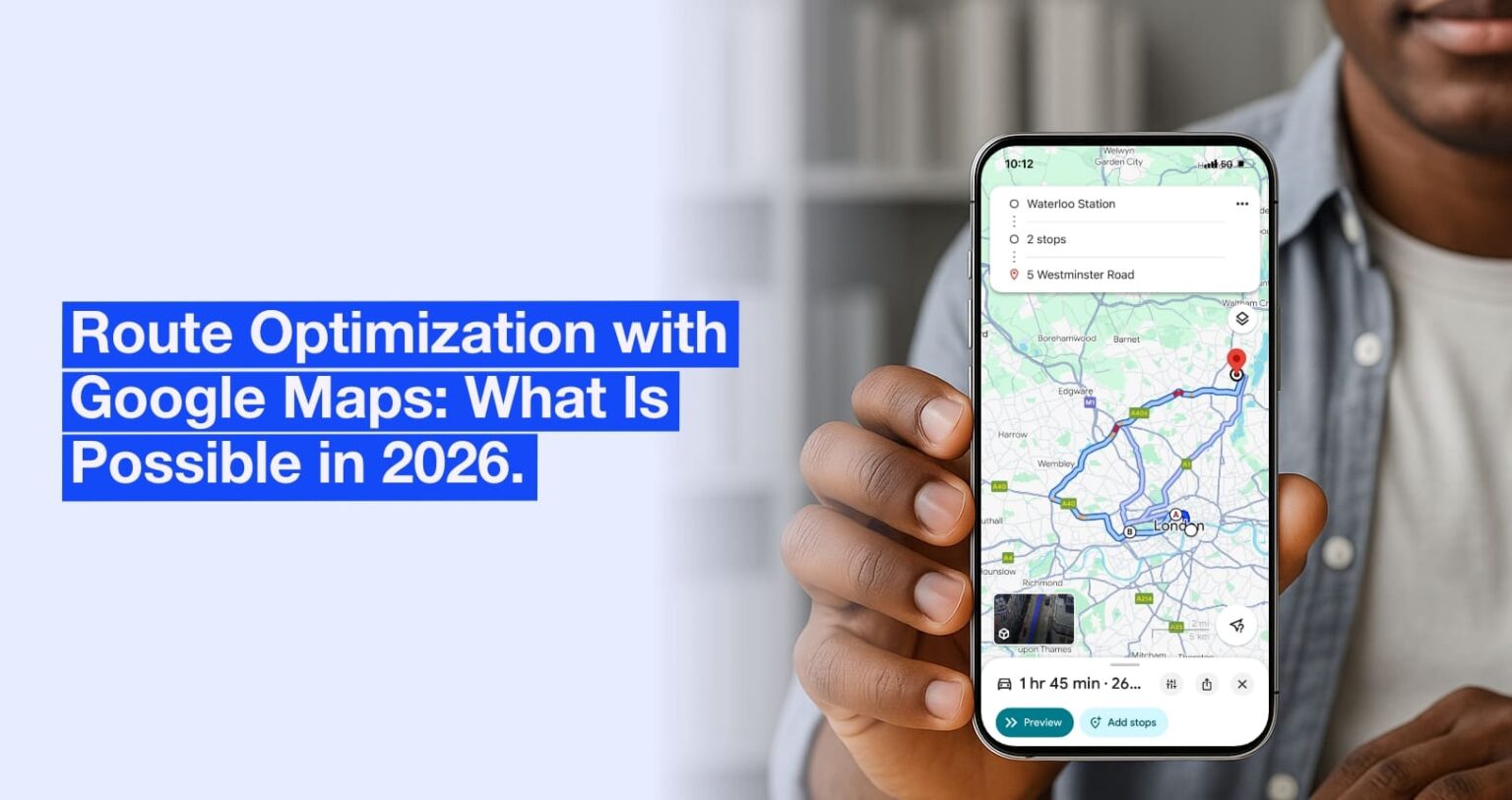
Adding multiple stops to your Google Maps directions is a straightforward process that significantly enhances trip planning, making it ideal for road trips, delivery routes, or visiting several locations in one outing. To begin, open Google Maps and input your initial destination. Once the primary route appears, locate the 'Add stop' option, which typically appears below your destination address. Clicking this button allows you to sequentially add additional addresses. Each new stop integrates seamlessly into your route, and Google Maps automatically recalculates the most efficient path, offering estimated travel times and distances for the entire journey. This method provides immense flexibility for customizing your travel itinerary.
When incorporating several stops, Google Maps offers intuitive controls to manage your route effectively. After adding multiple destinations, you can easily reorder them by dragging and dropping each stop into your preferred sequence. This feature is particularly useful for optimizing efficiency, ensuring that you visit locations in the most logical and time-saving order. Should you need to remove a stop, a simple click on the 'X' next to its entry will eliminate it from your itinerary. This dynamic capability ensures your custom directions remain flexible and adaptable to any last-minute changes or evolving travel plans, maintaining optimal navigation.
Understanding the nuances of adding multiple stops extends beyond mere input; it involves strategic planning. Consider the order of your stops not just by distance, but also by factors like traffic patterns during specific times of day, business operating hours, or personal preferences. For instance, if you have a morning appointment followed by an afternoon pick-up, arranging stops accordingly can save significant time and hassle. Google Maps continuously updates its traffic data, which can implicitly influence route suggestions, so always review the suggested order. Taking these considerations into account elevates your multi-stop planning, turning a series of destinations into a truly optimized journey.
Can I Save and Share My Custom Google Maps Route?
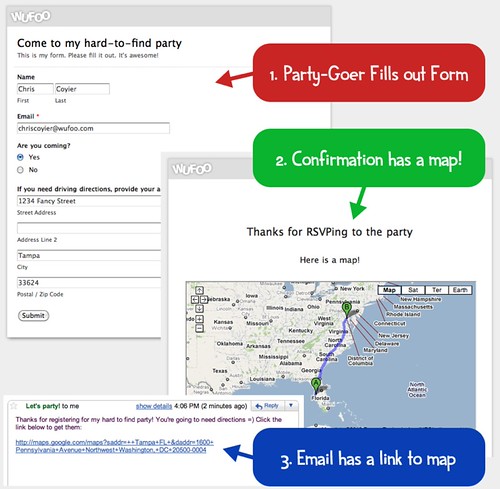
Absolutely, saving and sharing your custom Google Maps route is a core feature that empowers users to easily disseminate their meticulously planned itineraries. After finalizing your multi-stop directions, look for options like a menu icon or a 'Share' button within the directions interface, often represented by three dots or an arrow icon. Selecting 'Share' will typically generate a unique link to your custom map. This link can then be easily copied and pasted into emails, text messages, or social media platforms, allowing anyone with the link to view your personalized route, including all specified stops and estimated travel times. This makes coordinating group travel or business logistics incredibly convenient and efficient for all parties involved.
The ability to share custom routes provides immense utility, especially for collaborative planning or informing others about your planned journey. Imagine organizing a group outing; instead of individually explaining each stop, you can simply share the link, and everyone gains instant access to the full itinerary. For businesses, sharing optimized delivery or service routes ensures that drivers adhere to the most efficient paths, enhancing productivity and customer satisfaction. The shared link is dynamic, meaning if you make further adjustments to the saved route, the recipient will often see the most updated version, ensuring everyone remains on the same page without confusion.
Beyond simple sharing, certain advanced functionalities allow for more robust collaboration or saving for future use. For intricate or frequently used routes, consider using Google My Maps, a separate but integrated Google service. My Maps lets you create and save highly detailed, personalized maps with custom markers, layers, and descriptions, which can then be easily shared and even co-edited with others. This platform is ideal for complex projects, historical tours, or personal travel logs that require a deeper level of customization and permanent storage beyond the typical ephemeral route sharing in standard Google Maps, making it a powerful tool for dedicated map enthusiasts and planners.
What are the Benefits of Using Custom Directions?
Utilizing custom directions on Google Maps offers a wealth of benefits, significantly enhancing both personal travel and professional operations across the United States. One primary advantage is the unparalleled control it provides over your journey. Instead of relying solely on default routes, you can meticulously plan every stop, detour, and point of interest, ensuring your trip aligns perfectly with your specific agenda. This precision is invaluable for complex itineraries like family vacations to multiple attractions, efficiently running errands, or exploring new cities with a tailored sightseeing path, allowing you to optimize time and minimize unexpected detours.
Beyond personal convenience, custom directions serve as a powerful tool for businesses, particularly those involved in delivery, field service, or sales. By enabling route optimization with multiple stops, companies can create the most efficient paths for their fleets, reducing fuel costs, minimizing travel time, and improving overall operational productivity. This translates into faster service, increased customer satisfaction, and a more streamlined workflow for employees on the go. The ability to plan and share these optimized routes also ensures consistency and adherence to planned schedules, crucial for maintaining high standards of service delivery.
Furthermore, custom directions foster better preparation and reduce travel anxiety. Knowing your exact route, including all planned stops and estimated arrival times, eliminates much of the uncertainty associated with navigating unfamiliar areas or managing tight schedules. This clarity allows travelers to focus on their experience rather than worrying about logistics. For event planners, creating a custom map with specific venues, parking, and points of interest can significantly aid attendees. Overall, the ability to personalize routes transforms Google Maps into a proactive planning instrument rather than just a reactive navigation tool, offering peace of mind and enhanced efficiency for every user.
People Also Ask About Google Maps Custom Routes
How do I create a custom map with multiple points?
To create a custom map with multiple points, open Google My Maps, which is separate from the main Google Maps interface but seamlessly integrated. Click 'Create a new map' and then use the search bar to add locations one by one. For each location, you can add a marker, customize its icon and color, and include detailed notes or descriptions. This allows you to build a visual, interactive map with all your essential points clearly marked, making it ideal for elaborate planning or sharing comprehensive guides.
Can I avoid tolls or highways in my custom route?
Yes, you can easily avoid tolls or highways when planning custom directions on Google Maps. After entering your destinations and generating a route, look for 'Options' or 'Route options' typically found within the directions panel. Here, you will find checkboxes to select preferences such as 'Avoid tolls' or 'Avoid highways'. Selecting these options will automatically adjust your route to bypass those roads, providing a more personalized journey that aligns with your specific travel preferences or vehicle requirements.
Is there a limit to how many stops I can add to a custom route?
While extremely generous for most users, there is a practical limit to the number of stops you can add to a custom route within the standard Google Maps interface. You can typically add up to 10 stops directly when planning a multi-destination route. For more extensive itineraries requiring many more points, Google My Maps becomes the preferred solution. My Maps allows for the creation of highly detailed maps with hundreds of individual points, offering a robust platform for complex projects and extensive travel planning.
Creating custom directions on Google Maps empowers users to take charge of their journeys, whether for personal exploration, business efficiency, or group coordination. The ability to add multiple stops, reorder destinations, and share personalized routes transforms standard navigation into a strategic planning tool. By leveraging these features, U.S. searchers can optimize their travel time, reduce fuel costs, and ensure every trip is as smooth and tailored as possible. Embrace these customization options to enhance your daily commute, plan memorable road trips, or streamline your professional operations with precision and ease, making every mile count.


How To Create A Custom Google Map With Route Planner And Location Maxresdefault Apply Styles Themify Builder Style Make In Maps Tab TV Share Your Other People My Directions Routes GTYDB On Customize Driving DBBE1F7C2AD49FE45D04B1E3FC175D4E Quick Guide Personalized Paths RECTANGLE7 59B5CEE45E9243ECA001EC4439AE8A5B RECTANGLE7 59B5CEE45E9243ECA001EC4439AE8A5B 2026 Update Brings Ask 3D Navigation Roll Out 2026 2026 Nowe Funkcje Kt Re Musisz Zna 2026 Own Talk Android IMG 0965 2026 Zmienia Nawigacj AI Widok 3D I 4RINGS Pl 2026 2026 C P Nh T Gemini Tr L Th Ng Minh Cho D AVATAR1773389698608 1773389700074145717933 AVATAR1773389698608 1773389700074145717933 Edit 2024 Youtube.


How To Create A Custom Google Maps Itinerary Use It Offline Artofit E2FE9C8E06332078E1303AE380A5D809 Make Directions On Free Worksheets Printable Get Driving And More From Scaled Optimize Your Routes With The 2026 Guide Route Optimization AI Update 2026 Ask Immersive 3D Navigation 2026 Save In New Features 2026 What Changed For Local Business Image Fix 2026 Fast Easy Youtube Maxresdefault Map My Introduction SEO 2026 Listings 2026 Le Ultime Pour Vos D Placements Bernieshoot Definitive 2026 Rank Pack 2026.


Updated Google Maps 2026 What Changed Why It Matters Gmbmantra 1776841755399 2026 Changes Thumbnail 68A6B7EE 1776841755399 2026 68A6B7EE 2026 ABC Conception IMG 8362 E1769418595971 8362 E1769418595971 2026 Update Features Immersive View AI Search Geeky Lytecache How To Rank Higher On 2026 Connascent Image Customize Driving Directions Custom Route RMGD 5103247166 EFCB16A5EF 5103247166 EFCB16A5EF And SEO They Work Together In 2026 C Ch Hi U Qu N M 2026 Vi T Nam Marketing Cach Master Map With Photos 2026 Strategy Virtualtoureasy 0438728A 531F 4fa2 A56B 4bfdfbd1f4b5 0438728A 531F 4fa2 A56B 4bfdfbd1f4b5 2026 Local Guide Blog From Simple Printable.