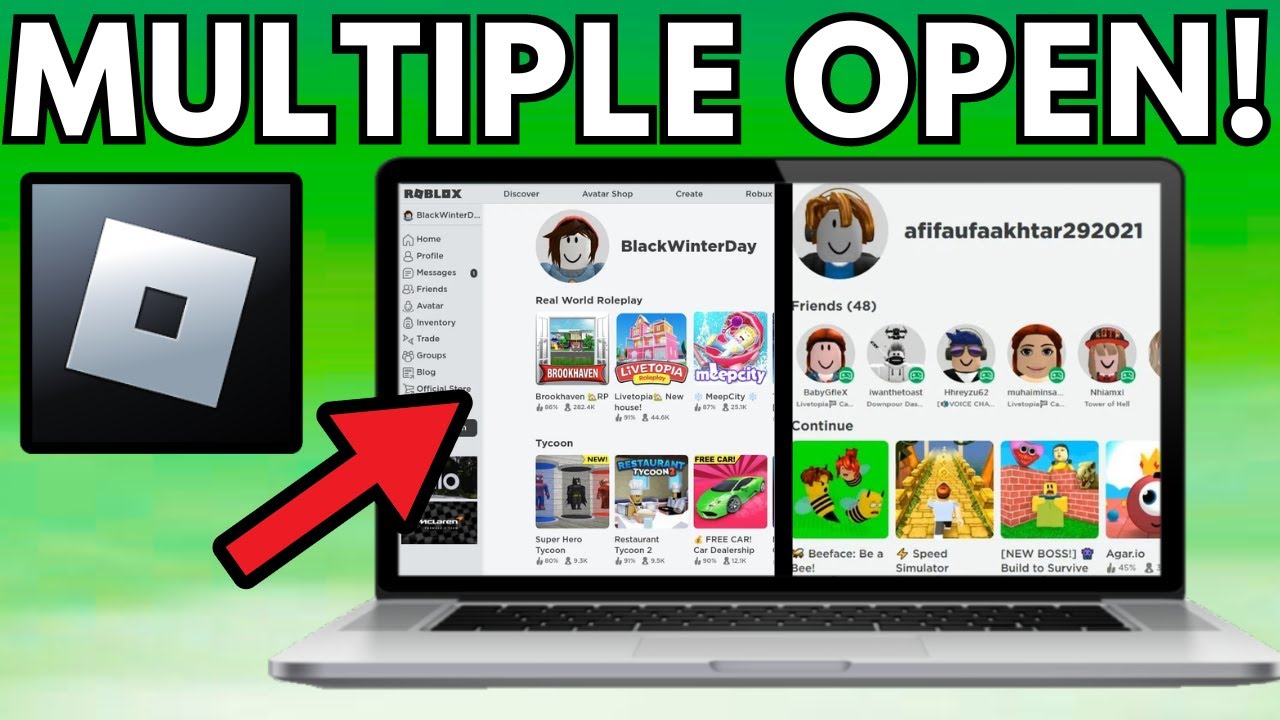
Ever wished you could juggle multiple Roblox accounts or explore different games simultaneously? For the average gamer, often balancing work family and life opening multiple Roblox windows seems like a distant dream or a technical headache. This comprehensive guide is designed for you. We understand that maximizing your gaming time means optimizing your setup whether it is for social play testing new game mechanics or simply managing your in-game farms efficiently. We will demystify the process showing you legitimate and performance-friendly ways to run several Roblox instances without the usual frustration. Forget the complex jargon; we are here to provide clear actionable steps so you can get back to what matters most enjoying your favorite games without hassle. Discover how to enhance your Roblox experience today.
How to open multiple Roblox windows simultaneously?
You can effectively open multiple Roblox windows by creating separate user accounts on your Windows operating system. Log into each account, launch Roblox, and switch between sessions without logging out. Another safe method involves using virtualization software like Sandboxie Plus, which creates isolated environments for each Roblox instance, allowing multiple logins from a single Windows profile.
Is it safe to run multiple Roblox instances?
Yes, it can be safe if done correctly. Using official methods like separate Windows user accounts or reputable sandboxing software (e.g., Sandboxie Plus) is generally secure. Avoid any unofficial third-party programs that modify Roblox's core files or promise exploits, as these can pose security risks, violate Terms of Service, or lead to account bans. Always prioritize legitimate and tested solutions.
What are the system requirements for running multiple Roblox instances?
Running multiple Roblox instances significantly increases resource demands. You will need a robust PC with at least 16GB of RAM, a modern multi-core CPU (Intel i5/Ryzen 5 or better), and a dedicated graphics card (NVIDIA GTX 1650/AMD RX 570 equivalent or higher). Sufficient storage space, preferably an SSD, and a stable internet connection are also crucial to prevent lag and ensure smooth performance across all active windows.
Can I use different Roblox accounts on each window?
Absolutely! The main benefit of opening multiple Roblox windows is the ability to log into a unique Roblox account on each separate instance. This allows you to multitask, manage alt accounts, test game features from different perspectives, or engage in social activities simultaneously, enhancing your overall Roblox experience.
Will running multiple Roblox windows cause my account to be banned?
Simply opening multiple Roblox windows is not inherently against Roblox's Terms of Service. However, using multiple accounts to exploit games, gain unfair advantages in competitive settings, or engage in botting or other manipulative behaviors is strictly prohibited and can result in account suspensions or permanent bans. Always play responsibly and within the game's rules.
Is there a free way to open multiple Roblox instances?
Yes, creating multiple user accounts on your Windows PC is a completely free and built-in method to run several Roblox instances. Each user account acts as a separate environment, allowing distinct Roblox sessions. Additionally, Sandboxie Plus is an open-source and free sandboxing software that lets you launch multiple Roblox instances securely from a single Windows profile.
How do I optimize performance when running multiple Roblox windows?
To optimize performance, ensure your PC has ample RAM (16GB minimum, 32GB recommended), a powerful multi-core CPU, and a dedicated GPU. Close unnecessary background applications, update your graphics drivers regularly, and run Roblox from an SSD for faster loading times. Monitor your system resources via Task Manager to identify and address any bottlenecks while multiple instances are active.
Hey fellow gamers! Ever found yourself wishing you could be in two places at once in Roblox? Maybe you want to manage an alt account while your main character is farming, or perhaps you are testing a game you are developing with a few friends who are busy, so you need to step in as multiple players. For many of us who balance a busy life with our passion for gaming, time is precious. We want to maximize our fun, build our skills, and stay connected with friends without unnecessary technical headaches. The good news is, opening multiple Roblox windows is totally achievable, and we are here to show you how, step by step, without any of the usual hype or complicated jargon.
As of 2026, the gaming landscape continues to evolve rapidly. US gamers, with an average age around 36, are spending more time than ever, with 87% playing regularly and averaging over 10 hours a week. Many juggle responsibilities, making efficient gaming a priority. Mobile gaming remains dominant, but PC and console cross-play are vital, especially for titles like Roblox. Social gaming and performance optimization are top concerns, alongside value for money when considering hardware upgrades or in-game purchases. This guide is tailored for you, the discerning gamer who wants practical solutions to enhance your Roblox experience.
Why Would I Want to Open Multiple Roblox Windows?
There are numerous practical reasons why a seasoned gamer might want to run multiple Roblox instances simultaneously. It is not just about showing off your high-end PC; it is about efficiency, social engagement, and even creative development. Think about it: you could be testing a new game with different player perspectives, managing multiple accounts for in-game resource farming, or simply exploring various experiences at the same time to decide what to play next. For players who often find themselves balancing gaming with family life or work, this capability means maximizing limited play sessions and getting more out of their virtual time. It transforms Roblox from a single-player focus into a powerful multitasking hub.
Is Opening Multiple Roblox Windows Officially Supported?
No, Roblox Corporation does not officially support running multiple instances of the Roblox Player client on the same computer at the same time. The default client installation is designed to limit users to a single active game session per device. This is primarily a measure for performance stability, anti-cheat mechanisms, and to ensure a fair playing environment. However, this does not mean it is impossible or inherently disallowed. It just means you wont find an official button or setting within the Roblox application itself to enable multi-instance play. The methods we will discuss rely on system-level tweaks or third-party tools that work around this limitation without directly violating Roblox's terms of service, provided they are used responsibly and without exploiting game mechanics.
What are the Safest Methods to Run Multiple Roblox Instances?
When looking to open multiple Roblox windows, safety and system stability should always be your top priorities. The safest methods generally involve using multiple user accounts on your operating system or employing legitimate third-party software designed for this purpose. Avoid any programs that promise to directly inject code into Roblox or modify its core files, as these can trigger anti-cheat systems, lead to account bans, or introduce security risks to your computer. Always download software from official developer websites, read reviews, and understand what a program does before installing it. Your gaming setup, often a significant investment, deserves protection from untrustworthy tools.
Method 1: Using Multiple Windows User Accounts
This is arguably the most secure and straightforward method, as it leverages your operating system's built-in functionality. Each Windows user account runs processes in isolation, effectively treating each Roblox instance as if it were on a separate computer. This means you wont encounter conflicts or performance issues unique to trying to run two instances from the same user profile. It is a fantastic option for families where multiple members play Roblox, or for individual gamers who want to maintain strict separation between different game accounts.
Here is how you can set it up:
- Create New User Accounts: Go to Windows Settings > Accounts > Family & other users > Add someone else to this PC. Follow the prompts to create additional standard user accounts. You do not need to make them administrator accounts.
- Install Roblox for Each User: Log into each new user account. Download and install Roblox from the official website within each new user profile. This ensures each profile has its own installation directory.
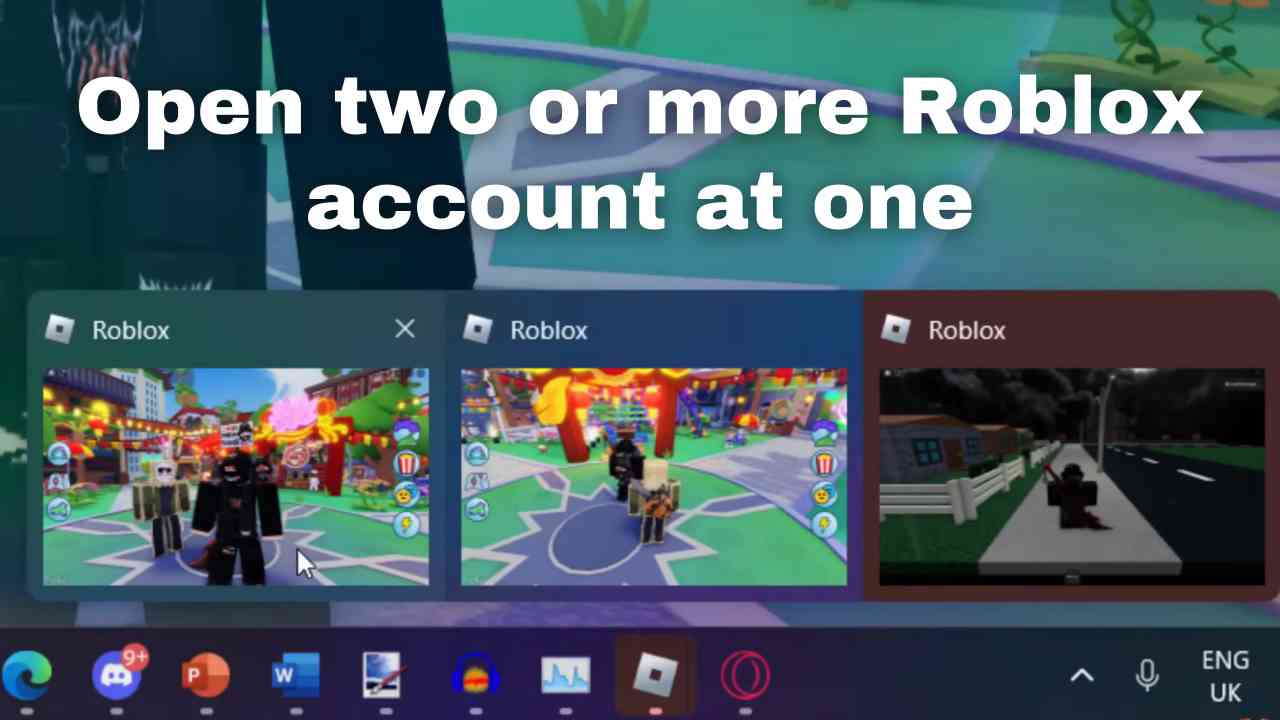
- Launch Multiple Instances: Log into your first user account and open Roblox. Then, switch user (without logging out) to another account (Ctrl+Alt+Del > Switch User) and open Roblox there. Repeat for as many accounts as you have.
- Switching Between Windows: You can use Alt+Tab to switch between the active user sessions, effectively managing multiple Roblox windows on your desktop.
This method offers excellent isolation and minimizes potential conflicts, making it a favorite for many users.
Method 2: Utilizing Multi-Instance Software (e.g., Sandboxie Plus)
For those who prefer a more streamlined approach without switching Windows user accounts, multi-instance software like Sandboxie Plus can be a game-changer. Sandboxie creates isolated environments (sandboxes) where applications can run without interfering with your main system or each other. This is incredibly useful for running multiple Roblox instances, as each instance operates within its own sandbox, preventing conflicts and enhancing security. It is a more advanced solution but offers great flexibility.
Steps to use Sandboxie Plus:
- Download Sandboxie Plus: Visit the official Sandboxie Plus website and download the latest version. Install it on your computer.
- Create New Sandboxes: Open Sandboxie Plus. Right-click in the main window and select 'Create New Sandbox'. Give each sandbox a clear name, like 'Roblox Instance 1', 'Roblox Instance 2', etc.
- Run Roblox in a Sandbox: Right-click on your Roblox Player shortcut (usually on your desktop or Start Menu). Select 'Run Sandboxed' and then choose one of your created sandboxes.
- Repeat for More Instances: Repeat step 3, selecting a different sandbox for each additional Roblox instance you want to open.
Sandboxie Plus is open-source and actively maintained, making it a reliable choice for managing isolated application instances. Remember to monitor your system resources, as running multiple instances even in sandboxes will consume more RAM and CPU.
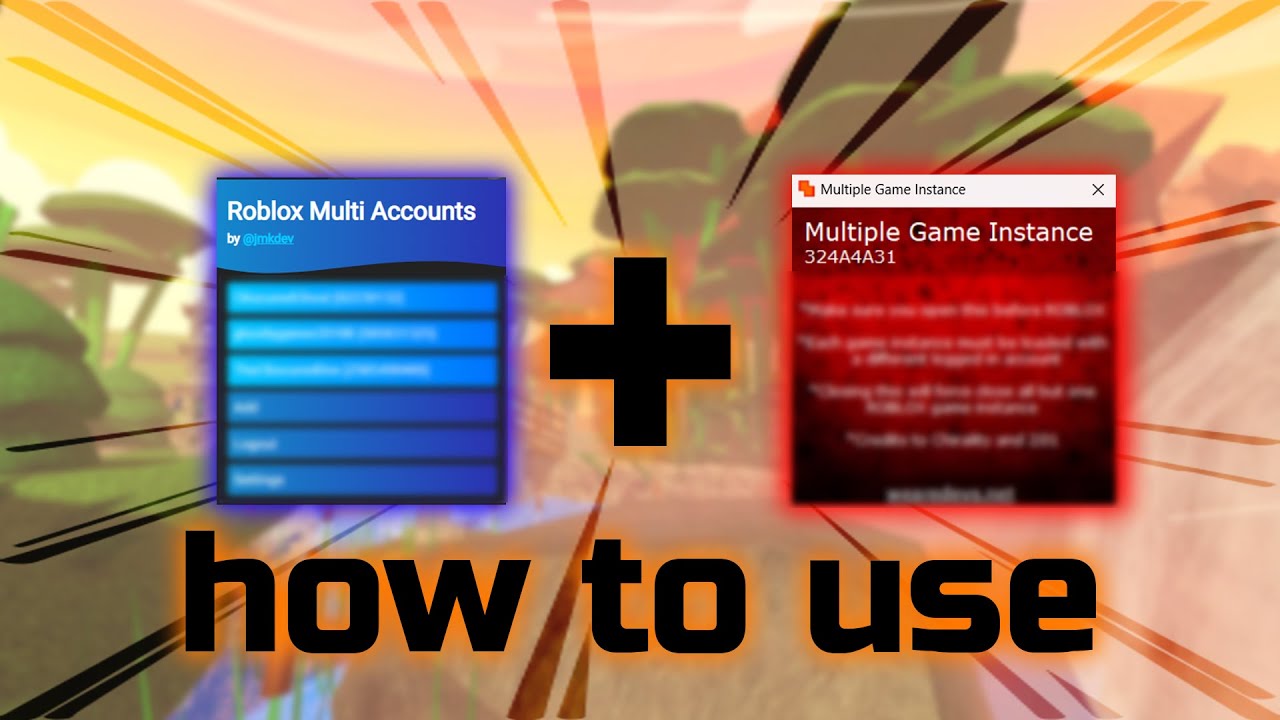
Method 3: Third-Party Launchers and Clients (Use with Caution)
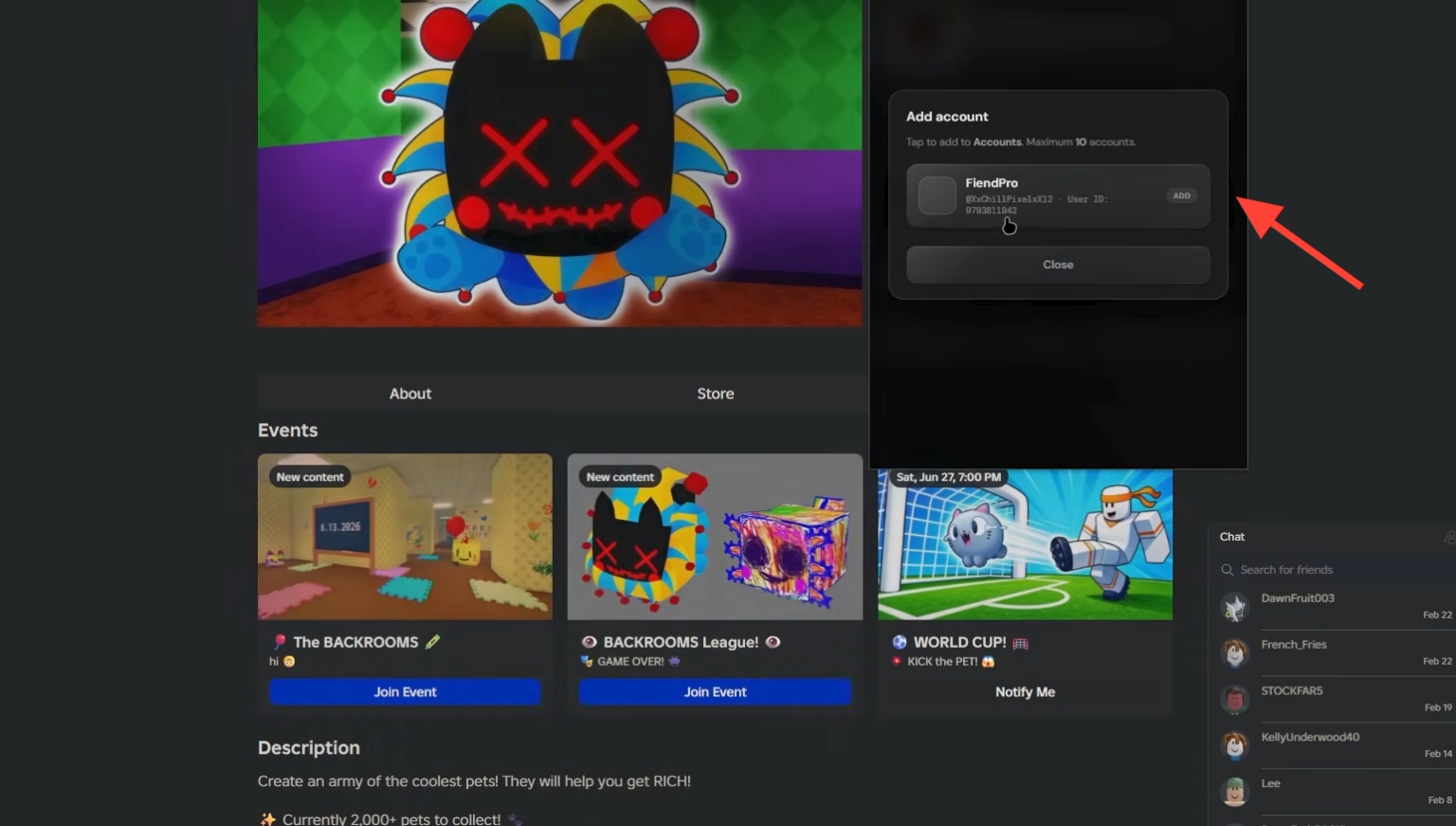
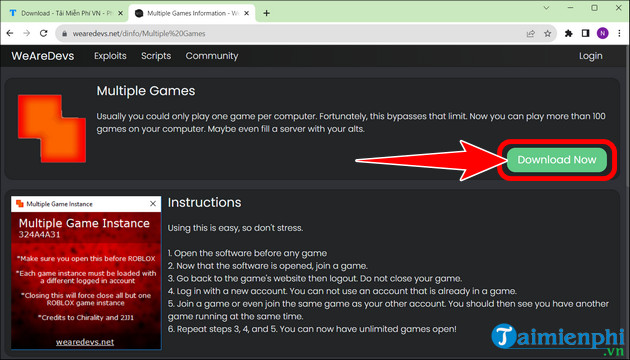
There are various community-made Roblox launchers and clients that claim to offer multi-instance functionality. While some of these might work, they come with inherent risks. These tools often modify the Roblox client launch process, and some may include features that violate Roblox's Terms of Service or even contain malicious software. It is crucial to exercise extreme caution if you decide to explore this route.
Before using any third-party launcher:
- Research Thoroughly: Look for extensive community reviews, independent security audits, and developer reputation.
- Verify Source: Only download from official or well-regarded sources. Avoid obscure forums or direct downloads from unknown links.
- Understand Risks: Be aware that using unauthorized third-party software could lead to account bans or system vulnerabilities.
For most users, sticking to the multiple Windows user accounts or Sandboxie Plus methods is the safer and more recommended approach for long-term use.
How Can I Optimize My PC for Multiple Roblox Windows?
Running multiple Roblox instances simultaneously can be resource-intensive, especially if you are playing demanding games or have many applications open. US gamers, with an increasing demand for seamless performance even when multitasking, need to consider their hardware. While an average gamer might not have a top-tier setup, optimizations can significantly improve your experience.
- RAM is Key: Roblox loves RAM. For multiple instances, aim for at least 16GB, but 32GB is ideal for smooth multitasking. Modern games and applications are increasingly memory-hungry.
- Strong CPU: A multi-core processor (Intel i5/Ryzen 5 or better) is essential, as each Roblox instance will utilize CPU cycles. More cores generally mean better multitasking performance.
- Dedicated GPU: While Roblox is not as graphically demanding as some AAA titles, a dedicated graphics card (NVIDIA GTX 1650/AMD RX 570 or higher) will ensure smooth visuals across all active windows, especially for complex games.
- SSD Storage: Running Roblox from a Solid State Drive (SSD) will drastically reduce loading times for each instance, improving overall responsiveness.
- Close Background Apps: Shut down any unnecessary applications, browser tabs, or background processes that consume RAM or CPU resources.
- Update Drivers: Keep your graphics drivers, chipset drivers, and operating system up to date for optimal performance and stability.
These optimizations can make a noticeable difference, allowing you to enjoy your multiple Roblox sessions without frustrating lag or crashes. Remember, balancing gaming with life means making smart choices about your tech too.
Will Running Multiple Instances Affect My Game Performance?
Yes, absolutely. Every additional Roblox instance you open will consume more of your computer's resources: CPU cycles, RAM, and GPU memory. If your system does not have sufficient resources, you will notice a significant drop in performance across all active instances. This can manifest as lower frame rates, input lag, slower loading times, or even system crashes. It is a common pain point for gamers trying to push their hardware limits without understanding the underlying resource demands.
For instance, if one Roblox instance uses 2GB of RAM and 15% of your CPU, two instances might use 4GB RAM and 30% CPU, and so on. These numbers are illustrative but highlight the linear increase in resource consumption. Monitor your Task Manager (Ctrl+Shift+Esc on Windows) to keep an eye on your CPU, memory, and GPU usage while running multiple instances. This will help you identify your system's limits and understand where bottlenecks might occur.
Can I Log into Different Roblox Accounts on Each Window?
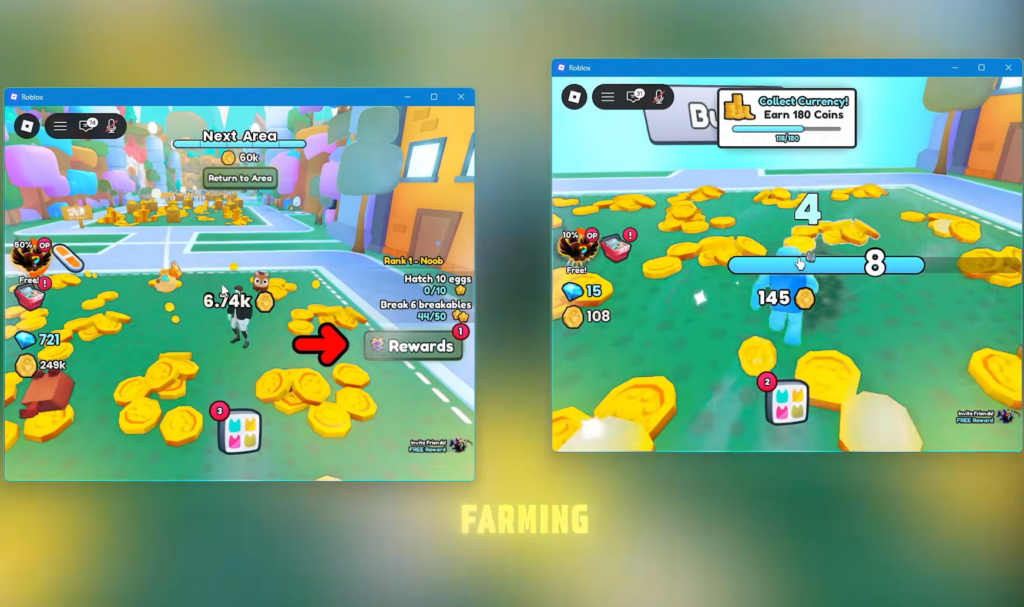
Yes, that is the primary benefit and indeed the purpose of setting up multiple Roblox windows. Each instance you successfully launch will allow you to log in with a distinct Roblox account. This means you can have your main account playing an experience, an alt account helping out, or entirely separate accounts engaged in different games. This capability is fantastic for social gaming, where you might want to play with friends using multiple accounts, or for content creators who need various perspectives for their videos. It unlocks a new level of multitasking and control within the Roblox ecosystem, making your gaming sessions more dynamic and productive.
Are There Any Risks or Downsides to Using Multiple Roblox Windows?
While beneficial, running multiple Roblox instances is not without its considerations. As mentioned, the primary downside is increased system resource usage, potentially leading to performance issues if your PC isn't adequately equipped. Beyond that, there are a few other points to keep in mind:
- Account Security: Managing multiple accounts means more passwords and login details. Ensure you use strong, unique passwords for each account and consider enabling two-factor authentication for enhanced security.
- Terms of Service (ToS): While running multiple instances itself is generally not against Roblox's ToS, using multiple accounts to exploit games (e.g., botting, unfair advantage in competitive games) can lead to account suspensions or bans. Always play fair.
- Complexity: Setting up and managing multiple instances can add a layer of complexity to your gaming setup, which might not be ideal for casual players who just want to jump into one game.
- Bug Potential: Unofficial methods or third-party tools might sometimes introduce unforeseen bugs or conflicts with Roblox updates.
By being aware of these potential downsides, you can make informed decisions and enjoy the benefits of multi-instance Roblox responsibly.
What about Mobile and Console Players? Can they Open Multiple Roblox Windows?
Unfortunately, the capability to open and run multiple Roblox instances simultaneously is largely limited to PC users. Mobile devices (iOS/Android) and consoles (Xbox, PlayStation, Nintendo Switch) are designed with a single-application focus to optimize performance and user experience on their respective platforms. Operating systems on these devices tightly control resource allocation and do not typically allow for simultaneous, independent instances of the same application. While mobile gaming continues to dominate globally, and cross-play is a growing trend, this specific functionality remains a PC-exclusive feature. So, if you are looking to run multiple Roblox accounts at once, a Windows PC or Mac is currently your only viable option.
How Can I Ensure Fair Play While Using Multiple Accounts?
Ensuring fair play is paramount, not just for the integrity of Roblox games but also for the longevity of your accounts. While having multiple accounts can be advantageous, using them to gain an unfair edge or exploit game mechanics can lead to severe consequences. Roblox has robust anti-cheat systems designed to detect unusual activity. Here are some guidelines for fair play:
- No Automation: Avoid using bots or scripts to automate actions across your multiple accounts. This is a quick way to get banned.
- No Exploiting: Do not use your alt accounts to exploit glitches, grief other players, or unfairly farm resources in a way that violates a game's specific rules.
- Play by the Rules: Each game on Roblox might have its own community guidelines in addition to Roblox's general Terms of Service. Always adhere to them.
- Legitimate Purposes: Stick to using multiple accounts for legitimate purposes like social interaction, testing, or managing separate inventories in non-competitive, cooperative experiences.
Remember, the goal is to enhance your enjoyment and versatility in Roblox, not to ruin the experience for others or risk your valuable accounts.
Conclusion
Opening multiple Roblox windows can significantly enhance your gaming experience, offering unparalleled multitasking capabilities whether you are a developer, a resource farmer, or just a social gamer looking to connect on multiple fronts. While Roblox does not officially support it, methods like using separate Windows user accounts or sandboxing software provide safe and effective workarounds. Remember to prioritize your PC's performance with adequate RAM and CPU, and always play fair to protect your accounts. For us busy gamers, these tips mean more fun and less frustration, letting us truly unwind and build those online connections. What is your biggest gaming challenge when multitasking? Comment below!
FAQ Section
Is it against Roblox's rules to open multiple windows?
Generally, simply opening multiple windows is not directly against Roblox's Terms of Service. However, using those multiple accounts to gain an unfair advantage, exploit games, or engage in botting activities is strictly prohibited and can lead to account bans. Always use multiple instances responsibly and ethically.
Can a low-end PC handle multiple Roblox instances?
A low-end PC will struggle significantly with multiple Roblox instances. Roblox is resource-intensive, and each additional window demands more CPU, RAM, and GPU. For a smooth experience, a PC with at least 16GB RAM, a modern mid-range CPU, and a dedicated graphics card is recommended. Otherwise, you will likely experience severe lag.
Do I need separate Roblox installations for each window?
Not necessarily separate physical installations. If you use the multiple Windows user account method, each user profile will have its own installation. If using sandboxing software like Sandboxie Plus, it isolates the running instance, so a single installation can be launched multiple times in different sandboxes. This is more efficient for storage.
How do I switch between multiple Roblox windows easily?
If you are using the multiple Windows user account method, you can switch between active user sessions using the Ctrl+Alt+Del shortcut and selecting 'Switch User'. If you are running multiple instances under the same Windows profile (e.g., with Sandboxie), you can simply use Alt+Tab to cycle through open windows on your desktop like any other application.
Are there any free tools to run multiple Roblox instances?
Yes, Sandboxie Plus is a popular open-source and free tool that allows you to run applications, including Roblox, in isolated environments called sandboxes. This is an excellent and safe option for creating multiple instances without the need for multiple Windows user accounts. Always download from its official website to ensure authenticity.
Will my internet connection affect multiple Roblox windows?
Yes, your internet connection will definitely affect multiple Roblox windows. Each instance connects independently to Roblox servers, requiring its own bandwidth. If your internet speed is slow or unstable, running multiple instances simultaneously could lead to higher ping, lag, and disconnections for all active sessions. A stable and fast connection is crucial.