Have you ever found yourself in the middle of an epic Roblox adventure, only for the screen to go dark, freezing your game and frustrating your plans? This common issue, often dubbed the 'Roblox blackout,' can be a real buzzkill for anyone trying to unwind after a long day or connect with friends. Whether it is a full-screen freeze, a sudden crash, or inexplicable lag that feels like a total system shutdown, understanding the root causes is the first step toward reclaiming your gaming peace. This comprehensive guide dives deep into why Roblox blackouts occur, from server-side glitches and internet woes to device limitations and outdated software. We will equip you with practical, easy-to-follow solutions that busy gamers can implement quickly. Stop letting technical hiccups ruin your valuable playtime. Get ready to troubleshoot like a pro and ensure your Roblox experience remains smooth and uninterrupted, allowing you to focus on the fun and social interaction that makes Roblox so great. Discover how to identify and resolve these frustrating blackouts, ensuring your virtual worlds stay vibrant and accessible. Our tips are tailored for the modern gamer balancing life and leisure, providing efficient fixes that respect your limited time.
What exactly is a Roblox Blackout and why does it happen?
A Roblox blackout is when your game screen goes black, freezes, or crashes, making it unplayable. This can happen due to Roblox server overloads, unstable internet connections, outdated device drivers, insufficient computer or mobile device resources, or even corrupted game files. It is a common issue that disrupts gameplay for many users, often requiring systematic troubleshooting to identify the specific cause.
How can I check if Roblox servers are down globally?
To check for global Roblox server outages, first visit the official Roblox Status Page. You can also search 'Roblox down' on social media platforms like X (Twitter) or Reddit, where other players often report widespread issues immediately. Third-party sites like DownDetector.com also provide real-time outage maps and user reports, confirming if the problem is widespread or specific to you.
What are the common device-specific causes of Roblox blackouts?
Common device-specific causes for Roblox blackouts include outdated graphics drivers, which are crucial for game rendering; insufficient RAM or CPU, which can cause the game to struggle with complex tasks; device overheating due to long sessions or poor ventilation; and corrupted Roblox game files that prevent proper loading. Addressing these ensures your device runs Roblox smoothly.
How can I improve my internet connection to prevent Roblox blackouts?
To improve your internet connection and prevent Roblox blackouts, use a wired Ethernet connection for maximum stability if possible. Minimize other devices or applications using bandwidth, restart your router and modem regularly, and ensure strong Wi-Fi signal strength if wireless is your only option. Updating your router's firmware can also enhance performance.
What software troubleshooting steps should I take for Roblox blackouts?
For software-related Roblox blackouts, try clearing your Roblox cache files and your web browser's cache. Disable any unnecessary background applications that consume system resources. Ensure your Roblox client is always updated, and check if your firewall or antivirus software is mistakenly blocking Roblox. Reinstalling Roblox can also resolve deeper software conflicts.
Are there specific in-game settings to prevent blackouts on Roblox?
Yes, adjusting in-game settings can prevent blackouts. Lowering the 'Graphics Quality' setting in Roblox, especially on less powerful devices, can significantly reduce strain. Some games allow you to decrease render distance. Playing in windowed mode instead of fullscreen can also sometimes improve stability. Experimenting with these options helps tailor performance to your hardware.
When should I consider upgrading my hardware to fix Roblox blackouts?
Consider upgrading your hardware if blackouts persist despite trying all software and internet fixes, if you consistently experience low frame rates even on low settings, or if load times are excessively long. If your device is more than 5-7 years old, or Roblox's system requirements have surpassed your current setup, a hardware upgrade like more RAM, a better GPU, or an SSD may be necessary.
How can I report persistent Roblox blackout issues effectively?
To report persistent Roblox blackout issues effectively, use the official Roblox Support page. Provide detailed information including a clear description of the problem, when it started, how frequently it occurs, all troubleshooting steps you have already taken, and your device specifications (OS, RAM, CPU, GPU). Attaching screenshots or videos can also significantly aid their investigation.
What if Roblox blackouts only happen in one specific game?
If blackouts only occur in one specific game, it's likely an issue with that particular experience. Try lowering the graphics settings specifically within that game, report the bug to the game developer (if possible), and ensure the game itself is fully updated. It might be due to poor optimization or a specific game-breaking bug within that single Roblox experience.
Can an unstable VPN connection cause Roblox blackouts?
Yes, an unstable or slow VPN connection can certainly cause Roblox blackouts. VPNs route your internet traffic through external servers, adding latency and potentially reducing bandwidth. If your VPN connection drops or is consistently slow, it can lead to disconnections, lag, and black screens in Roblox. Try disabling your VPN to see if the issue resolves.
Does reinstalling Roblox usually fix persistent blackouts?
Reinstalling Roblox is a highly effective troubleshooting step for persistent blackouts. It ensures you have the latest, uncorrupted game files and a clean installation of the client. This can resolve issues caused by incomplete updates, corrupted data, or lingering software conflicts that are otherwise hard to pinpoint, often providing a fresh start for the game.
How do I optimize my mobile device to prevent Roblox blackouts?
To optimize your mobile device for Roblox and prevent blackouts, close all unnecessary background applications to free up RAM and CPU. Keep your operating system and the Roblox app updated. Ensure you have ample free storage space, and lower the in-game graphics quality within Roblox settings. A stable Wi-Fi connection is also crucial for mobile gaming.
Hey fellow gamers! Ever sit down after a long day, finally ready to jump into your favorite Roblox experience with friends, only for the screen to go dark? That dreaded 'Roblox blackout' can turn relaxation into frustration faster than you can say 'Robux.' It is a common pain point for many of us who balance jobs, families, and life with our passion for gaming. We just want a smooth, fun experience, not a troubleshooting nightmare. With 87% of US gamers regularly dedicating 10+ hours a week to their passion, often mobile, and social gaming being a massive trend, these interruptions are more than just minor glitches; they are disruptions to our precious downtime and social connections. This guide is designed to help you understand and fix those frustrating Roblox blackouts, getting you back to building, adventuring, and socializing without a hitch. We will cover everything from basic checks to advanced tweaks, all with practical, time-saving solutions in mind, ensuring you stay current with the latest gaming tech and trends without the usual hype.
You are not alone in facing these issues. Many adult gamers, who value performance optimization and value for money, often encounter Roblox blackouts due to a mix of server-side problems, internet connectivity woes, or device-specific limitations. We will break down the common culprits and provide clear, actionable steps to get you back in the game. Think of this as your reliable friend who always has the tech solutions ready, so you can spend less time fixing and more time enjoying the vast world of Roblox.
What Exactly Is a Roblox Blackout and Why Does It Happen?
A Roblox blackout refers to any instance where your Roblox game screen suddenly goes black, freezes, crashes, or becomes unresponsive, making it impossible to continue playing. It is a broad term encompassing various technical glitches that disrupt your gameplay. The reasons are diverse, ranging from server overloads on Roblox's end to issues with your personal internet connection, outdated device drivers, or insufficient hardware resources. Sometimes, it is specific to certain games or experiences within Roblox, while other times it affects the entire platform. Understanding if it is a widespread outage or a localized issue is the first step in effective troubleshooting.
With mobile gaming dominating a significant portion of the market, and cross-play becoming more prevalent, Roblox’s infrastructure is constantly under immense pressure. Peak hours, major updates, or even specific in-game events can strain servers, leading to temporary blackouts. On the user's side, a weak Wi-Fi signal, too many background apps, or even a corrupted game file can trigger the same frustrating outcome.
How Can I Check if Roblox Servers Are Down Globally?
Before you start tweaking your own system, it is smart to check if the problem is bigger than your setup. Global Roblox blackouts happen, usually due to massive server overloads, maintenance, or unexpected technical failures on Roblox's end. This is often the first thing busy gamers check because it saves a lot of personal troubleshooting time.
- Official Roblox Status Page: Always your first stop. Roblox maintains an official status page that provides real-time updates on server health, ongoing maintenance, and any widespread issues. A quick glance here can confirm if the problem is on their end.
- Social Media: Twitter (or X), Reddit, and Discord communities are excellent sources. Search for 'Roblox down' or 'Roblox blackout' – if thousands of other players are reporting the same issue, it is a global problem. These platforms often light up within minutes of a major outage.
- Third-Party Status Websites: Sites like DownDetector.com aggregate user reports and provide heat maps of outages. They can give you a good visual indication of whether the issue is widespread across different regions.
If the servers are indeed down, all you can do is wait for Roblox to resolve the issue. In these cases, your best bet is to take a break, maybe catch up on some chores, or try a different game until service is restored.
What Are the Common Device-Specific Causes of Roblox Blackouts?
If Roblox servers are fine, the spotlight shifts to your gaming setup. For the average gamer juggling work and life, ensuring their device is optimized can sometimes feel like another job. However, addressing these common device issues can drastically reduce blackouts.
- Outdated Graphics Drivers: Your graphics card's drivers are crucial for rendering games. Outdated drivers can lead to instability, graphical glitches, and eventual blackouts. Regularly update them through your GPU manufacturer's website (NVIDIA, AMD, Intel).
- Insufficient RAM or CPU: Roblox might seem simple, but complex games within the platform can be resource-intensive. If your computer or mobile device has too little RAM, or your CPU is struggling, the game can freeze or crash. Check your device's specifications against Roblox's minimum requirements.
- Overheating: Extended gaming sessions can cause your device to overheat, especially if cooling systems are inadequate or vents are blocked. Overheating components can throttle performance and lead to sudden shutdowns or blackouts to prevent damage. Ensure proper ventilation, clean out dust, and consider a cooling pad for laptops.
- Corrupted Game Files: Sometimes, a Roblox update might not install correctly, or a game file might become corrupted. This can lead to loading errors or black screens. Reinstalling Roblox can often resolve these deeper file integrity issues.
These device-specific problems are often overlooked but are entirely within your control to diagnose and fix. A little maintenance goes a long way in ensuring smooth gameplay, allowing you to maximize your limited gaming time.
How Can I Improve My Internet Connection to Prevent Roblox Blackouts?
Your internet connection is the lifeline of online gaming. A shaky connection can manifest as lag, disconnections, and yes, blackouts, especially in socially-driven games like Roblox where real-time data exchange is constant. Optimizing your network setup is crucial for uninterrupted play.
- Wired Connection (Ethernet): For PC gamers, an Ethernet cable provides the most stable and fastest connection, eliminating Wi-Fi interference. This is a game-changer for reducing latency and packet loss.
- Minimize Bandwidth Usage: Ensure no other devices on your network are hogging bandwidth with downloads, streaming 4K video, or heavy uploads while you are playing Roblox. Even background app updates can impact performance.
- Restart Router/Modem: The classic IT fix often works wonders. Power cycle your router and modem for a minute to clear out temporary glitches and refresh your connection.
- Wi-Fi Signal Strength: If you must use Wi-Fi, ensure your device is close to the router or consider a Wi-Fi extender. Obstacles like walls and other electronics can degrade signal quality.
- Update Router Firmware: Just like device drivers, router firmware updates can improve performance and security. Check your router manufacturer's website for instructions.
A stable and fast internet connection is paramount for enjoyable online gaming. Investing a little time in optimizing it can save you hours of frustration down the line, ensuring your virtual social gatherings and skill-building sessions are seamless.
What Software Troubleshooting Steps Should I Take for Roblox Blackouts?
Beyond hardware and internet, software conflicts or misconfigurations can also trigger Roblox blackouts. These are often easier to fix but require systematic troubleshooting.
- Clear Roblox Cache: Over time, Roblox accumulates temporary files that can become corrupted or too large, leading to performance issues.
- Disable Background Applications: Other programs running in the background can consume CPU, RAM, and network resources, starving Roblox. Close unnecessary apps before launching Roblox. Use Task Manager (Ctrl+Shift+Esc) to identify and end resource-heavy processes.
- Update Roblox Client: Ensure your Roblox client is always up-to-date. Roblox frequently releases patches and updates that address bugs and improve stability. The client usually updates automatically, but a reinstall can force the latest version.
- Check Firewall/Antivirus: Your security software might mistakenly flag Roblox or its components as a threat, blocking its connection or operations. Add Roblox to your firewall's exception list or temporarily disable your antivirus to test if it's the culprit.
- Run Roblox in Compatibility Mode: For older operating systems or specific configurations, running Roblox in compatibility mode for an earlier Windows version might resolve conflicts. Right-click the Roblox icon, go to Properties > Compatibility, and experiment with settings.
To clear: Go to your AppData folder (Type %localappdata% in Windows search), find the Roblox folder, and delete the 'temp' folder within it. Also, clear your web browser's cache as Roblox uses it.
These software-based solutions are often quick wins for fixing blackouts and optimizing your gaming environment. They are about ensuring Roblox has all the resources it needs without interference from other software.
Are There Specific In-Game Settings to Prevent Blackouts on Roblox?
Yes, even within Roblox itself, adjusting certain settings can make a huge difference, especially if your device is on the lower end of the performance spectrum or you are experiencing blackouts only in specific, graphically intense games. Many gamers, particularly those balancing budget hardware with a desire to stay current, find these tweaks essential.
- Lower Graphics Quality: This is the most effective setting. In a Roblox game, press Esc, go to Settings, and adjust the 'Graphics Quality' to a lower level (e.g., 'Automatic' or a manual lower setting). This reduces the strain on your GPU and CPU.
- Reduce Render Distance: Some games allow you to manually lower the render distance, meaning fewer objects and textures need to be loaded and rendered at once. This can significantly improve performance in open-world or complex games.
- Disable Fullscreen: Playing in windowed mode, even a maximized window, can sometimes be more stable than fullscreen mode, particularly if you have multiple monitors or frequently alt-tab out of the game.
- Check Game-Specific Settings: Many popular Roblox games offer their own internal settings for graphics, effects, or object detail. Experiment with these if you notice blackouts primarily in one particular experience.
By intelligently adjusting these in-game parameters, you can tailor your Roblox experience to your device's capabilities, preventing blackouts and ensuring a smoother, more reliable play session. This allows you to continue enjoying social play and skill-building without constantly battling performance issues.
When Should I Consider Upgrading My Hardware to Fix Roblox Blackouts?
While software tweaks and connection improvements are great, there comes a point where an older device simply cannot keep up with the demands of modern games, including the increasingly complex experiences on Roblox. This is a common dilemma for gamers on a budget who want to enjoy the latest content.
You might consider a hardware upgrade if:
- Frequent Blackouts Persist: Despite trying all software, internet, and in-game setting fixes, blackouts remain common.
- Consistent Low FPS: Even on the lowest graphics settings, your frame rate is consistently low and stuttering.
- Long Load Times: Games take an excessively long time to load, indicating your CPU or storage (especially if it's an old HDD) is struggling.
- Device Age: Your PC or mobile device is more than 5-7 years old and uses outdated components.
- Roblox's System Requirements Increase: Roblox periodically updates its minimum and recommended system requirements. If your device falls below the minimum, upgrades become necessary.
Focus on upgrading RAM first if you have less than 8GB, then a graphics card (GPU) if you play graphically intensive games, and finally, switching to an SSD for faster load times. These upgrades offer the best value for money and significantly boost overall gaming performance, making those Roblox blackouts a distant memory.
How Can I Report Persistent Roblox Blackout Issues Effectively?
If you have exhausted all troubleshooting steps and still face persistent Roblox blackouts, especially if you suspect it is a bug or a server-side problem that affects only you or a small group, reporting the issue to Roblox is crucial. Your detailed report helps Roblox developers identify and fix bugs, benefiting the entire community.
Here is how to report effectively:
- Use the Official Roblox Support Page: Go to support.roblox.com. This is the official channel for submitting technical issues.
- Provide Detailed Information:
- Describe the Problem: Clearly explain what happens (e.g., 'screen goes black after 5 minutes in XYZ game,' 'game freezes on startup').
- When It Started: Note if it began after an update, a new game install, or seemingly randomly.
- Frequency: Is it constant, intermittent, or specific to certain times?
- Troubleshooting Steps Taken: List all the fixes you have already tried (e.g., 'cleared cache, updated drivers, checked internet'). This saves time and shows you have done your part.
- Device Specifications: Include your operating system (Windows 10/11, iOS, Android version), RAM, CPU, and GPU model.
- Screenshots/Videos: If possible, attach images or short video clips of the blackout occurring. Visual evidence is incredibly helpful.
- Be Patient: Support responses can take time. Avoid sending multiple reports for the same issue, as this can slow down the process.
By providing clear, concise, and comprehensive reports, you contribute significantly to the ongoing improvement of the Roblox platform. Your efforts help ensure that Roblox remains a fun and stable environment for all, aligning with the community-driven spirit of modern gaming.
Conclusion
Dealing with a Roblox blackout can be incredibly frustrating, especially when your gaming time is a cherished escape from daily responsibilities. But by systematically addressing potential causes—from server status and internet stability to device optimization and software conflicts—you can minimize these interruptions and reclaim your smooth, enjoyable Roblox experience. Remember, a little proactive maintenance goes a long way in ensuring your virtual adventures are always ready when you are.
What is your biggest gaming challenge when balancing life and play? Comment below!
FAQ Section
What is the best way to prevent Roblox blackouts on an older PC?
To prevent Roblox blackouts on an older PC, focus on keeping your graphics drivers updated, reducing in-game graphics quality, clearing Roblox and browser caches regularly, and ensuring no other heavy applications run in the background. A stable wired internet connection also helps significantly.
Does clearing my Roblox cache really help with blackouts?
Yes, clearing your Roblox cache can absolutely help with blackouts. Corrupted or oversized cache files can lead to loading errors, performance degradation, and game freezes. Regularly clearing these temporary files ensures Roblox is loading fresh data, improving stability.
Why does Roblox black out only in specific games, not all?
If Roblox blackouts occur only in specific games, it often points to those games being more graphically intensive, poorly optimized, or having unique bugs. Try lowering graphics settings within that specific game or reporting the issue to the game developer and Roblox support.
Is it better to play Roblox on Wi-Fi or Ethernet to avoid blackouts?
For optimal stability and to avoid blackouts related to connection issues, an Ethernet (wired) connection is almost always superior to Wi-Fi. Ethernet reduces latency and packet loss, providing a more reliable data stream essential for online gaming.
How often should I update my graphics drivers for Roblox?
It is good practice to check for graphics driver updates at least once a month, or whenever you notice new performance issues or after a major Roblox update. New drivers often include optimizations and bug fixes that can prevent blackouts and improve overall game stability.
Can too many Roblox game passes or items cause blackouts?
No, having many game passes or items in your inventory does not directly cause blackouts. Blackouts are typically due to technical issues like server problems, internet connectivity, device performance, or software conflicts, not your in-game purchases or inventory size.
What Roblox settings can I adjust on mobile to prevent blackouts?
On mobile, reducing the in-game graphics quality and resolution is key. Also, ensure your device has sufficient free storage space and RAM by closing background apps. Keep your mobile operating system and the Roblox app updated to the latest versions.
Does reinstalling Roblox fix most blackout issues?
Reinstalling Roblox is a very effective troubleshooting step for many blackout issues. It ensures you have a fresh, uncorrupted installation of the game files and the latest client version, often resolving problems caused by corrupted updates or old program files.
Understanding Roblox Blackout causes like server issues, internet problems, device limitations, and software. Step-by-step troubleshooting for common Roblox Blackout scenarios. Optimizing device settings and internet connection for smoother Roblox gameplay. Learning how to identify and report persistent Roblox Blackout bugs. Strategies to balance gaming with daily life while enjoying Roblox.
35

Blackout Revival Play On Roblox NoFilter. Blackout Revival Codes June 2026 Updated Daily Latest Roblox Codes C8dbde. Coming Soon Operation Blackout Roblox IP2cCK92vBM. Blackout Revival Roblox NoFilter. Blackout Revival Roblox NoFilter

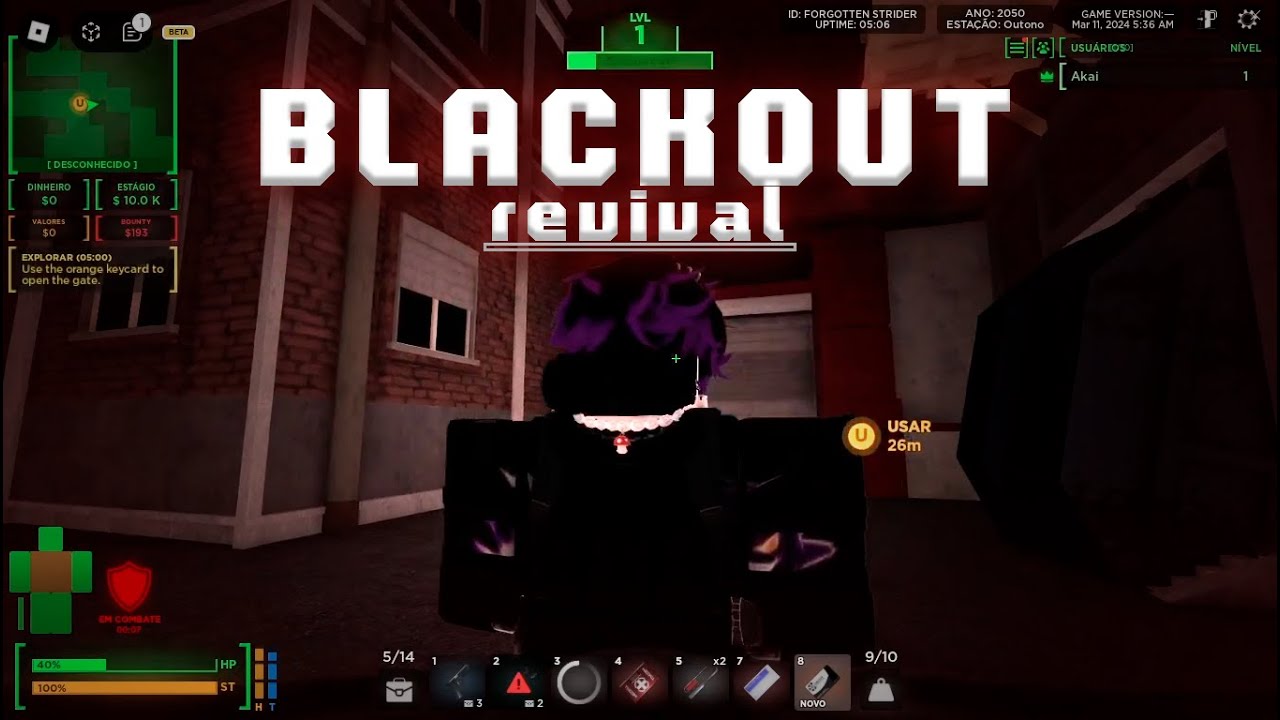

Blackout Revival Play On Roblox NoFilter. Blackout Revival Roblox NoFilter. Blackout Revival Codes Wiki Claim Freebies June 2026 MrGuider Roblox Blackout Revival Codes . Roblox Blackout Revival Tutorial Early Access YouTube . Site Blackout Play On Roblox NoFilter


I Explore The New UPDATE Of Blackout Roblox Blackout YouTube . A Quick Showcase On The NEW Roblox Blackout Revival Update YouTube . Blackout Play On Roblox NoFilter. Roblox Blackout Early Access Gameplay YouTube . ROBLOX BLACKOUT REVIVAL YouTube

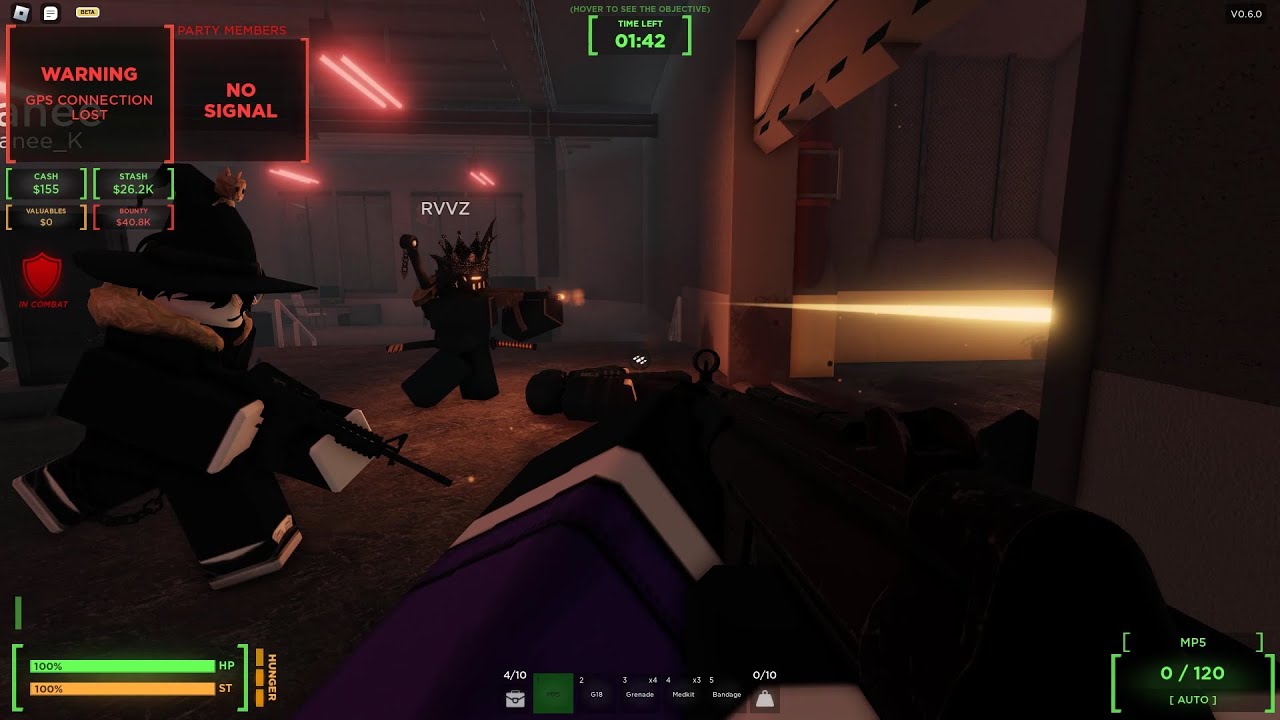


Roblox Blackout Gameplay YouTube . Roblox Blackout Sneak Peek 8 YouTube . Blackout Revival Play On Roblox NoFilter. Prepare For 2026 With Roblox Trends TikTok Img. What Is The New BlackOut Protest In Roblox YouTube




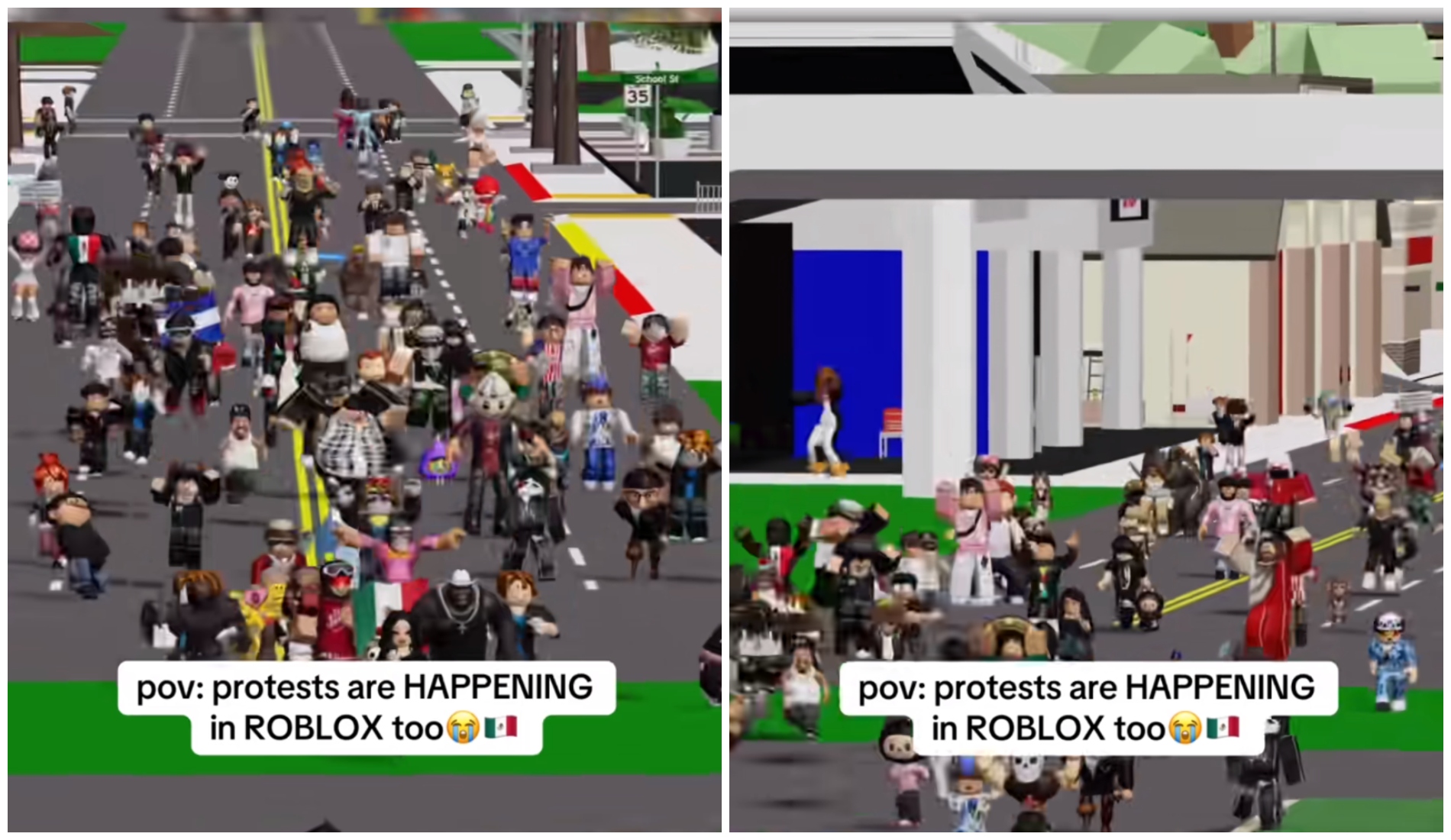
ROBLOX BLACKOUT REVIVAL REMAKE UPDATE 2026 Payhip O . What Is Broack Roblox And Why Is It Trending In 2026 . Roblox In 2026 Play On Roblox NoFilter. Definitive Guide To Roblox 2026 TM 07169 AU 19 60 Football Heaven TM 07169 Definitive Guide To Roblox 2026 . Kids On Roblox Are Holding Their Own ICE Protests Roblox Protests




Roblox 2026 Logo REVEALED New Color New Look YouTube Maxres2 . Roblox Blackout March 1st Explained Why Developers And Players Are Roblox Games.webp. ROBLOX BLACKOUT REVIVAL REMAKE UPDATE 2026 Payhip O . BLACKOUT 2026 Official Trailer Post Apocalyptic Thriller . Blackout 2026 Details


Blackout Revival Roblox Game Rolimon S NoFilter. ROBLOX Blackout Is AMAZING Game Review YouTube . Reboot Roblox Blackout Montage YouTube . ROBLOX Blackout EARLY ACCESS IT S HERE YouTube . Blackout 2026 IMDb V1 FMjpg UX1000