Unlock a world of PC VR experiences on your Oculus headset. Many gamers, averaging 36 years old and balancing busy lives, want to enjoy their Steam VR library without buying new hardware or re-purchasing games. This comprehensive guide details exactly how to play Steam games on Oculus Quest 2, Quest 3, or other compatible Oculus devices using methods like Oculus Link, Air Link, and Virtual Desktop. Discover the essential hardware and software requirements, step-by-step setup instructions, and crucial optimization tips for smooth, immersive gameplay. We address common pain points like performance issues and connection problems, offering practical solutions. Learn how to leverage your existing Steam library, find new favorites, and even enjoy social VR experiences, all while managing your time and budget effectively. This resource is designed for the modern gamer who values performance, convenience, and getting the most value from their VR investment.
How to Play Steam Games on Oculus Quest 2 or 3?
Playing Steam games on your Oculus Quest 2 or 3 involves connecting your headset to a VR-ready PC via a wired (Oculus Link) or wireless (Oculus Air Link or Virtual Desktop) connection. First, install the Oculus PC app, Steam, and SteamVR on your computer. Then, depending on your chosen method, follow the setup steps for Link/Air Link or Virtual Desktop to stream PC VR content from Steam to your headset, opening up a massive library of games.
What are the essential hardware requirements for Steam VR on Oculus?
To play Steam VR games on your Oculus, you'll need a VR-ready PC featuring at least an Intel i5-4590 / AMD Ryzen 5 1500X processor, 8GB+ RAM, and a powerful graphics card like an NVIDIA GeForce GTX 1070 / AMD Radeon RX 580 or newer. For wireless play, a stable 5GHz Wi-Fi 6 router is highly recommended for optimal performance and minimal latency.
How do I set up Oculus Link for wired Steam VR gameplay?
Set up Oculus Link by first installing the Oculus PC app and SteamVR on your VR-ready computer. Connect your Oculus headset to your PC with a high-quality USB 3.0 cable. Once in your headset, accept the prompt to enable Oculus Link. From the virtual desktop interface, simply launch SteamVR or any Steam VR game directly, and it will appear in your headset.
Is Oculus Air Link a good option for playing Steam games wirelessly?
Yes, Oculus Air Link is a free, built-in option for playing Steam games wirelessly on your Oculus headset. Ensure both your PC and headset are on the same 5GHz Wi-Fi network. Enable Air Link in both your headset's experimental features and the Oculus PC app settings. It offers decent performance for many, but a strong, clear Wi-Fi signal is crucial for a smooth experience.
Why should I consider Virtual Desktop for Steam VR on Oculus?
Virtual Desktop is a popular paid third-party app often preferred for its robust wireless performance when playing Steam VR on Oculus. It typically offers lower latency and better visual quality than Air Link for many users. Install the app on your headset and the Streamer app on your PC, then connect wirelessly to access your PC desktop and launch SteamVR games.
What are the best settings to optimize Steam VR performance on Oculus?
Optimize performance by adjusting refresh rate and rendering resolution in the Oculus PC app's 'Graphics Preferences' (e.g., 90Hz). For wireless, set a suitable bitrate (150-200 Mbps for Air Link, 80-100 Mbps for Virtual Desktop), increasing gradually. Within SteamVR, keep render resolution around 100% and fine-tune individual game settings to balance visuals and a stable frame rate.
How can I troubleshoot common Steam VR connection issues with Oculus?
Common troubleshooting steps include updating graphics drivers, restarting your PC, headset, and router. For wireless issues, ensure minimal network interference, use a dedicated 5GHz Wi-Fi 6 band, and be close to your router. For wired Link, try different USB 3.0 ports or cables. Check game-specific requirements and lower in-game settings if necessary.
Are you a dedicated gamer, juggling work, family, and life, who loves the immersive world of VR but feels limited by your standalone Oculus headset? Do you look at your vast Steam library, filled with incredible PC VR titles, and wish you could experience them on your Quest 2 or Quest 3 without complicated setups or breaking the bank? You're not alone. The average US gamer, around 36 years old, regularly dedicates over 10 hours a week to gaming, often seeking relaxation, skill-building, and social connection. They crave high-performance experiences and value for money, but often struggle with technical hurdles and finding time to set everything up. The good news is, connecting your Oculus headset to Steam VR is not only possible but surprisingly accessible, opening up a universe of gaming possibilities. This guide will walk you through exactly how to play Steam games on Oculus, transforming your standalone VR experience into a full-fledged PC VR powerhouse, addressing those common pain points and helping you get back to what matters: epic gaming.
What Do I Need to Play Steam VR Games on My Oculus Quest?
To dive into your Steam VR library with your Oculus headset, you'll need a few key components. First and foremost, a VR-ready PC is essential. This means a computer with a capable processor (Intel i5-4590 / AMD Ryzen 5 1500X or newer), at least 8GB of RAM, and a powerful graphics card (NVIDIA GeForce GTX 1070 / AMD Radeon RX 580 or newer). Many modern gamers, especially those balancing work and life, might already have a solid desktop for other tasks. Next, you'll need the Oculus desktop app installed, along with Steam and SteamVR. Finally, for a wired connection, a high-quality USB 3.0 cable (preferably a 5-meter fiber optic cable for Oculus Link) is crucial. For wireless, a robust 5GHz Wi-Fi 6 router is highly recommended for optimal performance with Air Link or Virtual Desktop, ensuring minimal latency and a smooth experience.
How Do I Set Up Oculus Link or Air Link for Steam VR?
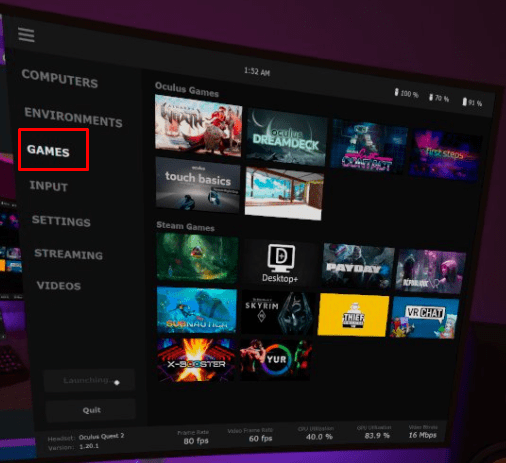
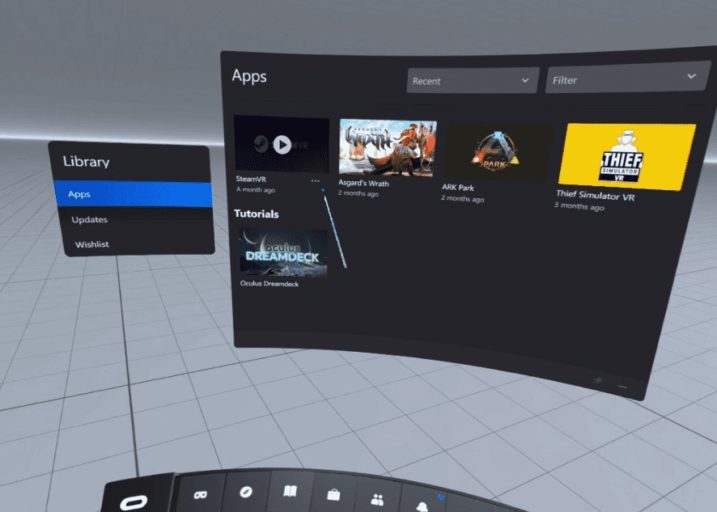
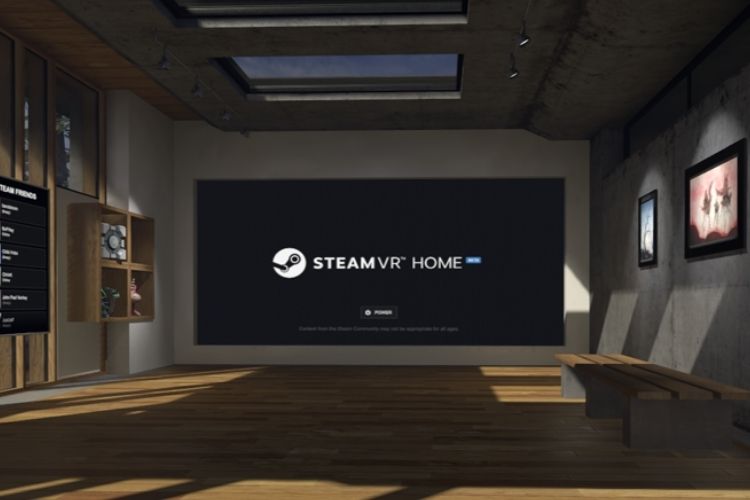
Setting up Oculus Link or Air Link to play Steam VR games is straightforward. For **Oculus Link (wired)**, start by installing the Oculus PC app and SteamVR on your computer. Connect your Oculus headset to your PC using a compatible USB 3.0 cable. Once connected, put on your headset, and you should see a prompt to enable Oculus Link; accept it. From the Oculus PC app, launch SteamVR from the desktop view. Your headset will then display the SteamVR home environment, allowing you to access your games. For **Oculus Air Link (wireless)**, ensure both your PC and headset are on the same 5GHz Wi-Fi network. In your headset, go to 'Settings' > 'Experimental Features' and enable 'Air Link'. On your PC, open the Oculus desktop app, go to 'Settings' > 'Experimental Features', and enable 'Air Link'. Select your PC from the available Air Link connections in your headset. Once connected, launch SteamVR from within the Air Link desktop view.
What Is Virtual Desktop and How Does It Connect to Steam VR?
Virtual Desktop is a popular third-party application that offers an alternative and often superior wireless experience for playing PC VR games on your Oculus headset. Unlike Air Link, it's a paid app, but many users find its performance and features worth the investment. To use it, purchase and install the Virtual Desktop app on your Oculus headset and install the Virtual Desktop Streamer application on your PC. Ensure both your PC and headset are on the same 5GHz Wi-Fi network. Launch Virtual Desktop on your headset, select your PC from the list, and once connected, you'll see your PC desktop in VR. From there, you can launch SteamVR or individual Steam VR games directly from the Virtual Desktop menu within your headset. This method is praised for its lower latency and improved visual fidelity compared to Air Link for many users, making it a go-to for many in the social gaming community on Discord.
What Are the Best Settings for Optimal Performance?
Optimizing settings is key for a smooth VR experience, especially for busy gamers who hate lag. In the Oculus PC app, navigate to 'Devices' > 'Quest/Quest 2/Quest 3' > 'Graphics Preferences'. Here, you can adjust the refresh rate (typically 90Hz is a good balance) and rendering resolution. For Air Link or Link, a higher resolution means sharper visuals but demands more from your PC. For wireless, a crucial setting is the bitrate. Start with around 150-200 Mbps for Air Link or 80-100 Mbps for Virtual Desktop, and gradually increase it until you notice stuttering, then dial it back. Within SteamVR settings, you can also adjust the 'Render Resolution' per application or globally. A good strategy is to set SteamVR's resolution to 'Auto' or 100% and then fine-tune individual game settings. Remember, performance optimization is a balance between visual quality and frame rate; prioritize a stable frame rate to avoid motion sickness.
How Can I Troubleshoot Common Connection and Performance Issues?
Even with perfect setups, glitches happen. If you're experiencing lag, disconnections, or a black screen when trying to play Steam VR games on Oculus, here are common troubleshooting steps. First, ensure your graphics drivers are up to date. Outdated drivers are a frequent culprit. For wireless issues, check your Wi-Fi network: ensure only your VR setup is using the 5GHz band, minimize other network traffic, and try moving closer to your router. A dedicated Wi-Fi 6 router just for VR can make a huge difference. If using Oculus Link, try a different USB 3.0 port or cable. Sometimes, simply restarting your PC, your Oculus headset, and your router can resolve many transient issues. If a specific game is causing problems, check its minimum requirements against your PC specs and try lowering its in-game graphics settings. Many gamers find community forums a rich source of solutions for specific game or hardware combinations.
Are There Any Specific Steam VR Games Recommended for Oculus Users?
Absolutely! The Steam VR library is vast, offering something for every type of gamer. For those seeking relaxation and fun, titles like 'Beat Saber', 'Pistol Whip', and 'SUPERHOT VR' offer immediate, satisfying gameplay perfect for unwinding after a long day. If you're into skill-building and immersion, 'Half-Life: Alyx' remains the gold standard for narrative and interaction. Social gamers, a significant trend among 2026's diverse demographic, will love 'VR Chat', 'Rec Room', and 'Pavlov VR', where you can connect with friends and strangers in virtual worlds. Even free-to-play options like 'VRChat' or 'Rec Room' offer endless hours of engagement. For budget-conscious gamers, keep an eye on Steam sales; major titles often get significant discounts. Popular this month, social and cozy games are seeing a surge, making titles like 'Among Us VR' (available on Steam) fantastic for family and friends.
How Do I Manage My Gaming Time and Budget Effectively?
Balancing gaming with jobs, families, and life is a reality for the majority of US gamers. To manage gaming time effectively, try scheduling dedicated VR sessions, even if they're shorter, to ensure you make the most of your playtime. Prioritize games that offer quick satisfaction or clear save points. For budget management, leverage Steam sales and bundles. Consider free-to-play Steam VR titles or demos before committing to a purchase. Hardware upgrades don't always mean buying the newest GPU; sometimes optimizing software settings or investing in a better router for wireless VR provides a significant performance boost for less money. Keeping an eye on community discussions on platforms like Reddit or Discord can also reveal hidden gems and optimal settings without needing costly upgrades. Value for money is key for today's gamer.
What Are the Future Trends for Playing PC VR on Standalone Headsets?
The future of playing PC VR on standalone headsets like Oculus Quest is exciting and constantly evolving. We're seeing increasing focus on improving wireless streaming technologies, with advancements in Wi-Fi 7 promising even lower latency and higher bandwidth, further blurring the lines between wired and wireless experiences. Cloud VR gaming is also on the horizon, allowing users to stream high-fidelity VR games from powerful remote servers directly to their headsets, bypassing the need for a high-end local PC entirely. This would democratize access to top-tier VR content, making it accessible to even more gamers. Integration with mobile platforms and seamless cross-play options will continue to grow, offering greater flexibility. For the busy gamer, these trends promise even easier, more accessible, and higher-performing ways to enjoy the best PC VR has to offer without significant local hardware investments.
FAQ Section
Is my PC powerful enough for Steam VR?
Your PC needs at least an Intel i5-4590 or AMD Ryzen 5 1500X CPU, 8GB RAM, and an NVIDIA GTX 1070 or AMD RX 580 GPU to run most Steam VR titles smoothly on your Oculus headset. Check game-specific requirements for demanding titles like Half-Life: Alyx.
Can I play wirelessly using my Oculus Quest?
Yes, you can play Steam VR games wirelessly on your Oculus Quest using either Oculus Air Link (free, built-in) or the Virtual Desktop app (paid third-party). Both require a strong, stable 5GHz Wi-Fi network, preferably Wi-Fi 6, for optimal performance.
Do I need a strong Wi-Fi connection for wireless PC VR?
Absolutely. A strong, dedicated 5GHz Wi-Fi connection, ideally Wi-Fi 6, is critical for a smooth wireless PC VR experience with minimal latency. Ensure your PC is connected via Ethernet to the router and your headset is close to the router, with minimal network interference.
What's the difference between Oculus Link and Air Link?
Oculus Link connects your Oculus headset to your PC via a USB-C cable for a wired PC VR experience, offering maximum stability and visual quality. Air Link provides a wireless PC VR experience over Wi-Fi, offering freedom of movement but can be more susceptible to network interference.
Can I play Steam VR games on Oculus Quest without a PC?
No, to play Steam VR games, you need a VR-ready PC because Steam VR games are designed to run on PC hardware and then stream the video to your Oculus headset. The Oculus Quest alone can only run standalone Quest store games.
How can I reduce motion sickness in VR?
To reduce motion sickness, ensure a high and stable frame rate, use comfort options like teleportation locomotion if available, play in a cool room, and take frequent breaks. Gradually increase your play sessions as you adapt to VR environments.
In conclusion, bringing your Steam VR library to your Oculus headset is a game-changer for many, offering a vast array of high-quality experiences without significant new investments. Whether you choose the reliable Oculus Link, the convenient Air Link, or the robust Virtual Desktop, the path to expanded VR gaming is clearer than ever. By optimizing your setup and understanding the tools available, busy gamers can easily integrate these incredible virtual worlds into their lives, finding relaxation, building skills, and connecting with friends. What's your biggest gaming challenge when connecting your Oculus to Steam? Comment below and share your tips with the community!
Play Steam VR games on Oculus headsets; Oculus Link and Air Link setup; Virtual Desktop explained; PC hardware requirements for Steam VR; Optimizing performance settings; Troubleshooting common VR issues; Discovering best Steam VR games for Oculus; Budget-friendly VR gaming tips; Future of wireless PC VR.
35


How To Set Up A Game Controller For Steam BDownload Steam Games On Oculus Quest 2 Link Or Wireless . How To Play STEAM Games With Oculus Quest 2 On Your PC 2022 Step By . How To Play Steam Games On Oculus Quest 2 WePC How To Play Steam Games On Oculus Quest 2 . FASTEST WAY TO CONNECT OCULUS QUEST 2 TO PC Play Steam Games On . How To Play Steam VR Games Wirelessly On Oculus Quest TechtipsVR View Steam Libary 1



Steam Vr Oculus Steam Vr Steam Link Comment Jouer Aux Jeux Oculus Quest 2 SteamVR . How To Play Steam Games On An Oculus Quest 2 Wired Connection 13 . 3 Ways To Play Steam VR Games On Oculus Quest 2 Oculus Ke PC .webp. How To Play Steam Oculus Quest 2 At Annie Ettinger Blog . How To Play Steam Games On Oculus Quest 2 YouTube Hqdefault

VR Oculus Quest 2 How To Play Steam Games Technipages Q2 Play Steam 7 . How To Play Steam Games On The Oculus Quest 2 Using A Link Cable Steam Room 717x512 . How To Play Steam Games On Oculus Quest 2 Gamer Tweak Oculus Quest 2 Steam Games 768x432 . How To Play Steam Games On The Oculus Quest 2 2022 Beebom SteamVR Featured . How To Play Steam Games On The Oculus Quest 2 Using A Link Cable Oculus 1 2048x1040 1

UPDATED SteamVR Setup Guide For Oculus Rift S How To Play Steam VR . How To Play Steam VR Games With An Oculus Quest 2 TechRadar . Oculus Quest Can It Play Steam Games Online How To Play Steam Games On Oculus Quest 2 1 . Steam Games Oculus Quest New Arrivals How To Play Steamvr Games Quest 2 . How To Play Steam Games On Oculus Quest 2 TechStory 154036 Ar Vr News Virtual Desktop Will Let You Play Pc Vr Games On The Oculus Quest 2 At 90hz Image1 Liugt1u489


VR Oculus Quest 2 How To Play Steam Games Technipages Q2 Play Steam 4 500x381 . How To Play Steam Games On Oculus Quest 2 Wired Wireless V4 460px Play Steam Games On Oculus Quest 2 Step 9 . How To Play Steam Games On Oculus Quest 2 Wired Wireless Play Steam Games On Oculus Quest 2 Step 21 . How To Play Steam Games On An Oculus Quest 2 Wired Connection 4 1 . How To Play Steam VR Games Wirelessly On Oculus Quest TechtipsVR Steam Library 1


10 Best Multiplayer Games On Oculus Quest 2026 Gaming Net 1920x1080 . How To Play Steam Games On Oculus Quest 2 Wired Wireless V4 460px Play Steam Games On Oculus Quest 2 Step 1 . How To Connect Oculus Quest 2 To Steam Complete Guide Crop 127 140 127px Play Steam Games On Oculus Quest 2 Step 21 . 10 Best Multiplayer Games On Oculus Quest In 2026 Gaming Net Rec Room 2048x1152 . Steam 2026 4 New Free To Play Games Available Now AllKeyShop Com Showcase Steam Free Games 2026 Indie F2p Card Roguelike Sci Fi



How To Play Steam Games On Oculus Quest 2 Wired Wireless V4 460px Play Steam Games On Oculus Quest 2 Step 20 . How To Play Steam VR Games Wirelessly On Your Oculus Quest A Steam Deck With Some Verified Labels On The Screen And An Alert Icon . How To Play PC VR Games On An Oculus Quest 2 SteamVR . How To Play Steam Games On Oculus Quest 2 Wired Wireless V4 460px Play Steam Games On Oculus Quest 2 Step 4 . How To Play Steam VR Games On Oculus Quest 2 Pro Game Guides Steam Vr Oculus Quest Image 450x235