Connecting with friends on Roblox is a cornerstone of the platform's immersive social experience, transforming solo adventures into shared memories. This guide provides a straightforward, step-by-step process on how to add friends on Roblox, perfect for busy gamers balancing work and family. You'll learn how to search for users, send requests, and manage your friend list efficiently across all devices. We'll cover the desktop experience, mobile app usage, and even console interactions, ensuring you can link up with your gaming pals no matter where you play. Stay current with the latest methods and privacy settings to ensure smooth social interaction. This navigational resource will help you quickly master friend management, enabling more collaborative gameplay and deeper community engagement within the vast Roblox universe, enhancing your overall gaming enjoyment and social connectivity with ease.
How do I send a friend request on Roblox?
To send a friend request on Roblox, first log into your account on PC or mobile. Use the search bar, typically found in the 'Friends' section on desktop or via the 'Chat' tab on mobile, to type in your friend's exact username. Once you locate their profile, click the 'Add Friend' button. They will then need to accept your request for the friendship to be established. This process ensures mutual consent for connection.
What are the steps to accept a friend request in Roblox?
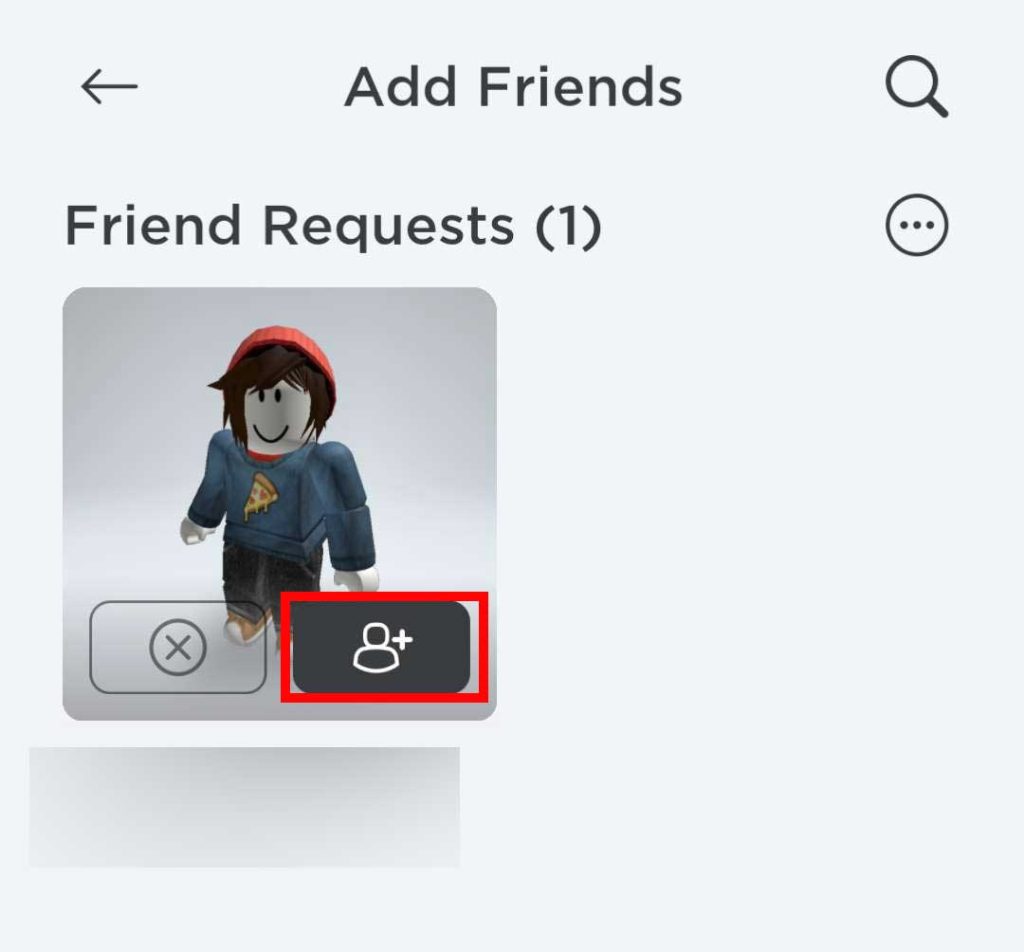
Accepting a friend request on Roblox is simple. When you receive a request, a notification will appear on your 'Friends' tab (PC) or 'Chat' icon (mobile). Navigate to your 'Friends' page or 'Chat' section, and look for a 'Requests' or 'Pending' tab. Here, you'll see a list of incoming requests. For each request, you'll have the option to 'Accept' or 'Decline'. Click 'Accept' to add them to your friend list.
Can I add friends on Roblox if I only know their display name?
No, you cannot add friends on Roblox using only their display name. Display names are not unique and can be changed by users frequently. To successfully send a friend request, you must know and use the person's exact, unique Roblox username. Always confirm their username to ensure you're connecting with the correct player.
What should I do if my Roblox friend request is pending for a long time?
If your Roblox friend request remains pending for an extended period, it typically means the recipient hasn't accepted or declined it yet. They might be inactive, haven't seen the notification, or simply haven't decided. You could try sending them a quick message outside of Roblox, perhaps via another platform, to remind them to check their requests. There's no way to force an acceptance.
How do Roblox privacy settings affect adding friends?
Roblox privacy settings significantly impact who can send you friend requests. Users can choose to allow requests from 'Everyone', 'Friends of Friends', or 'No one'. If a user has restricted this setting, you won't be able to send them a request unless you meet their criteria (e.g., being a friend of a mutual friend) or they adjust their settings. Always check your own privacy settings to control your social interactions.
Is there a limit to how many friends you can have on Roblox?
Yes, Roblox imposes a limit of 200 friends per account. This cap helps maintain system performance and manage social interactions efficiently. If you reach this limit, you will not be able to send or accept any new friend requests until you unfriend some existing connections. Regularly managing your friend list is a good practice to keep it relevant.
Can you add friends while playing a game on Roblox?
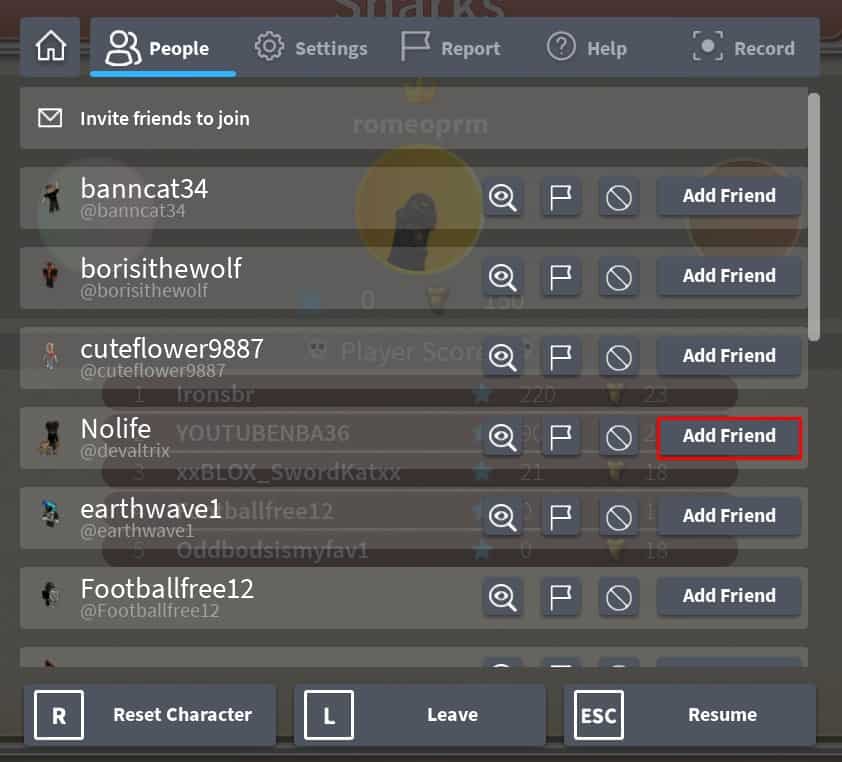
Yes, you can absolutely add friends directly from within a game on Roblox. While in a game, access the in-game player list (often by pressing 'Tab' on PC or a specific icon on mobile). Find the username of the player you wish to add, click or tap on it, and select the 'Add Friend' option that appears. This allows for quick and seamless connections with players you meet during gameplay.
For many of us who juggle careers, families, and life's endless to-do lists, gaming isn't just a pastime; it's a vital escape, a way to unwind, and often, a cherished social hub. Roblox, with its immense universe of user-created games, offers a fantastic platform for both solo exploration and shared adventures. But let's be real, navigating new systems, especially when you're short on time, can feel like another chore. You just want to jump in, connect with your buddies, and start building or battling together, right?
You're not alone. Many adult gamers, part of the 87% who game regularly in the US, averaging over 10 hours a week, find social gaming incredibly rewarding. Whether it's to relax, build skills, or simply laugh with friends, connecting with others on platforms like Roblox is key. This guide is built specifically for you. We'll cut through the noise and show you exactly how to add friends on Roblox, ensuring you can quickly link up with your pals without any headaches. We'll cover everything from finding usernames to managing requests, making sure you spend less time fumbling with menus and more time enjoying those valuable gaming moments.
How Do You Add Friends on Roblox from Your PC?
Adding friends on Roblox from your PC is the most common and often easiest method. The process is straightforward, designed to get you connected quickly so you can jump into games with your squad. Remember, Roblox prioritizes user experience, making the social features intuitive for players of all ages.
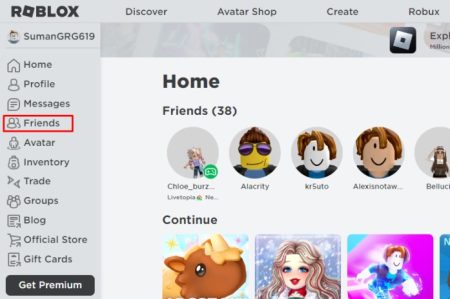
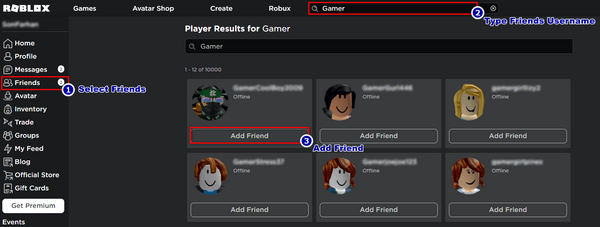
First, log into your Roblox account on the official website. Once logged in, look for the 'Friends' tab on the left-hand navigation bar. Clicking this will take you to your personal friends page, where you can see existing friends, pending requests, and, most importantly, the search bar for finding new friends. This is your central hub for all social interactions on the platform. US gaming trends this month show a continued rise in social gaming, making these connections more important than ever.
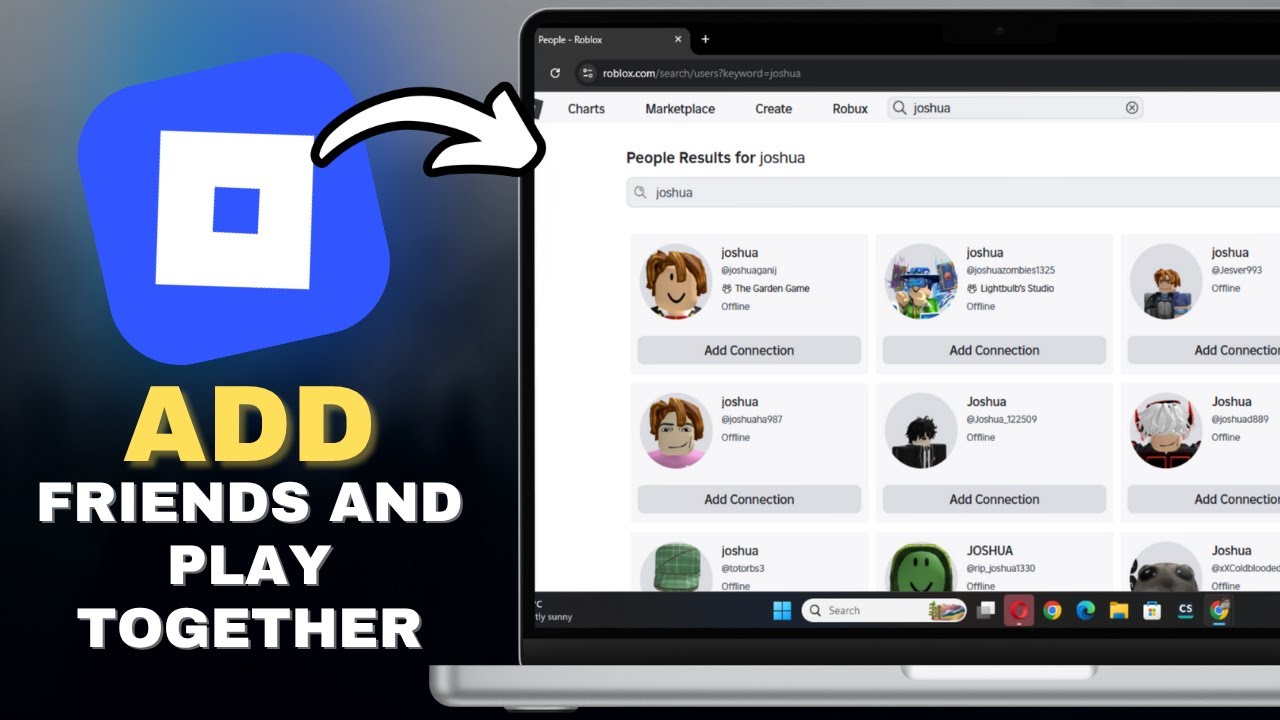
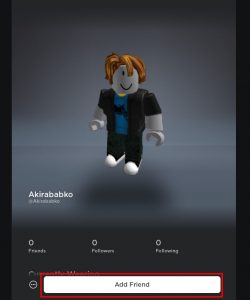
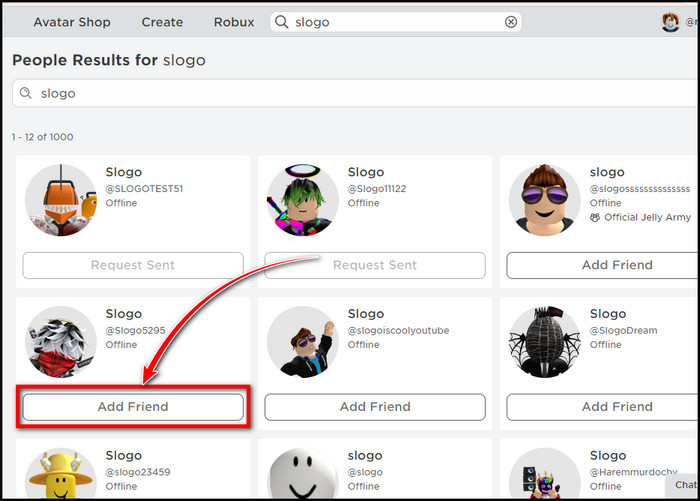
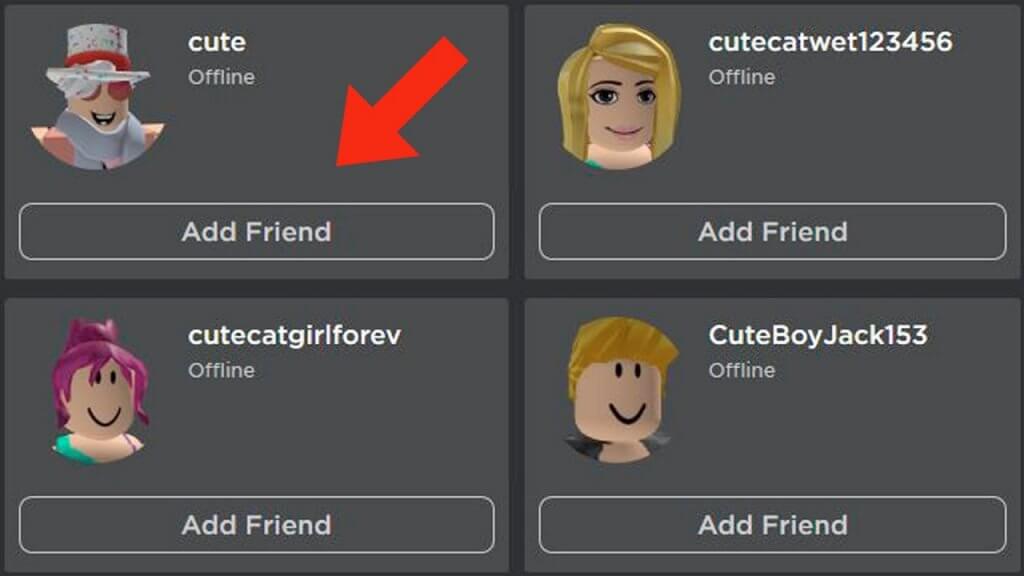
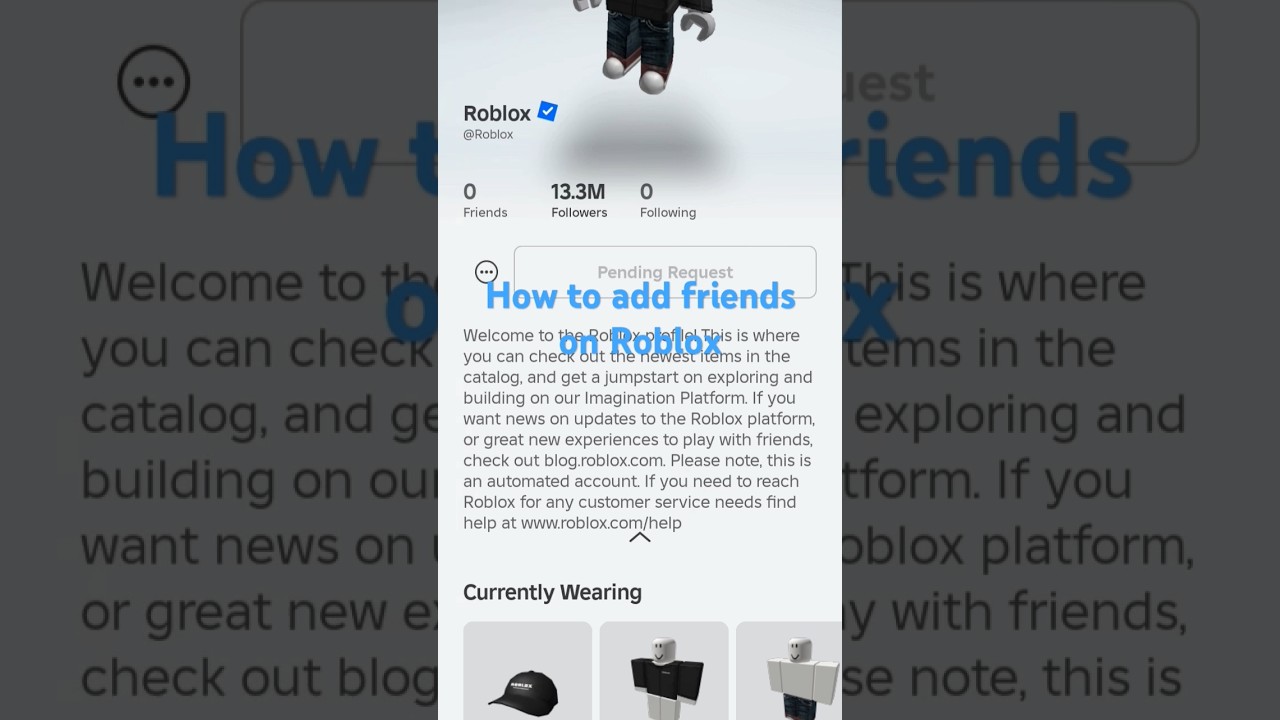
To add a friend, simply type their exact Roblox username into the search bar located at the top of the 'Friends' page. Usernames on Roblox are unique, so getting it right is crucial. Once you've typed it in, hit Enter or click the search icon. Roblox will then display profiles matching your search. Find your friend's avatar and username among the results, and click on their profile. On their profile page, you'll see a prominent 'Add Friend' button. Click this button, and a friend request will be sent directly to them. They will need to accept it for the connection to be established. It's a simple, two-step process that ensures mutual consent for friendship.
What's the Process for Adding Friends on the Roblox Mobile App?
Given that mobile gaming dominates a significant portion of the US market, with many adult gamers playing on the go, knowing how to add friends via the Roblox mobile app is essential. The mobile app mirrors much of the desktop functionality but with a touch-friendly interface.
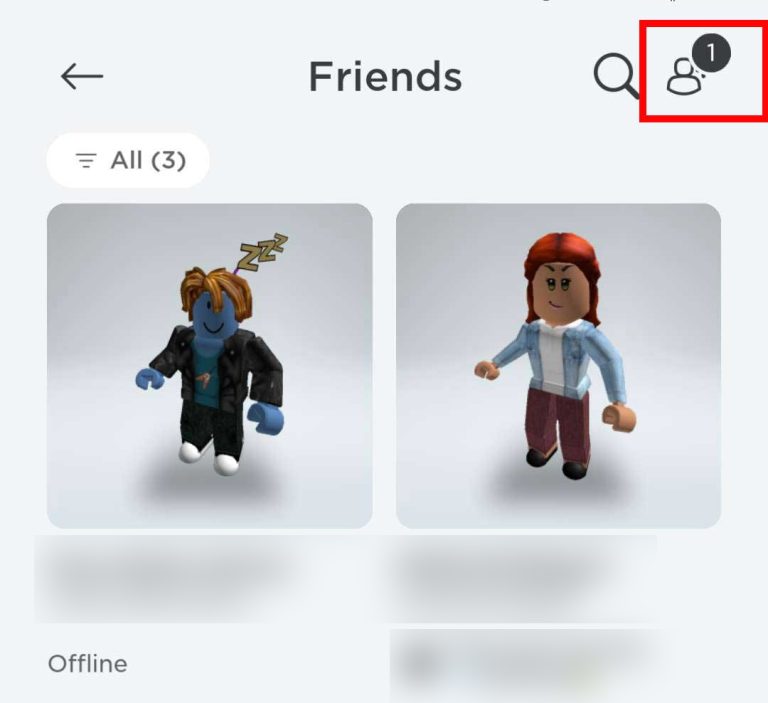
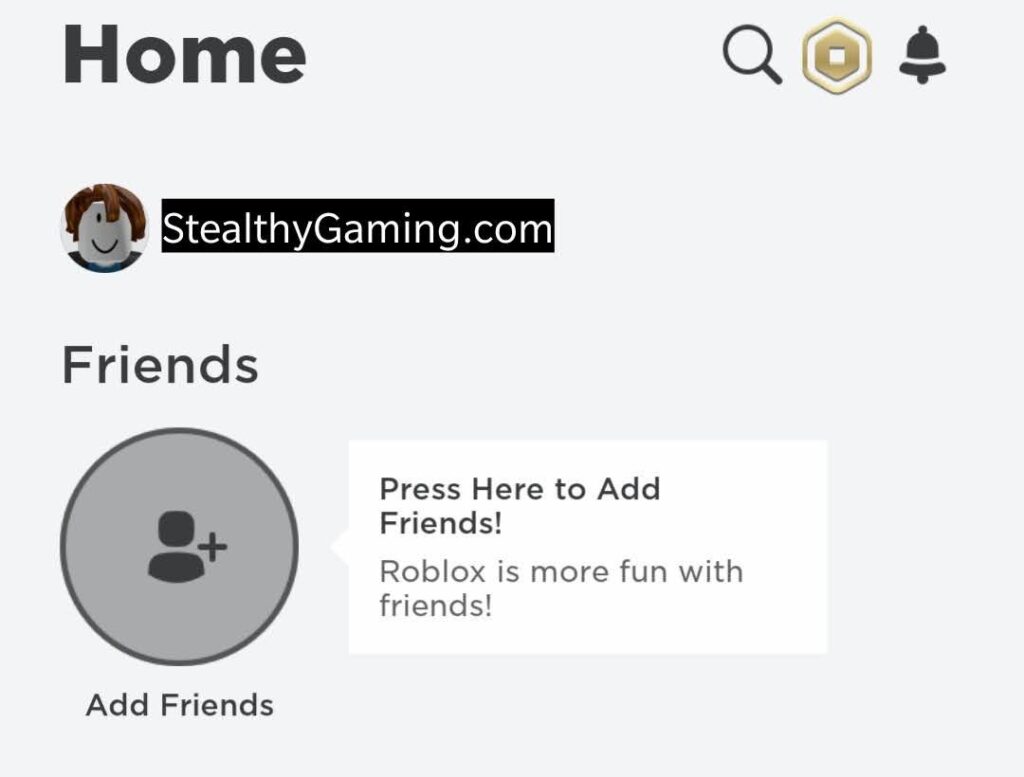
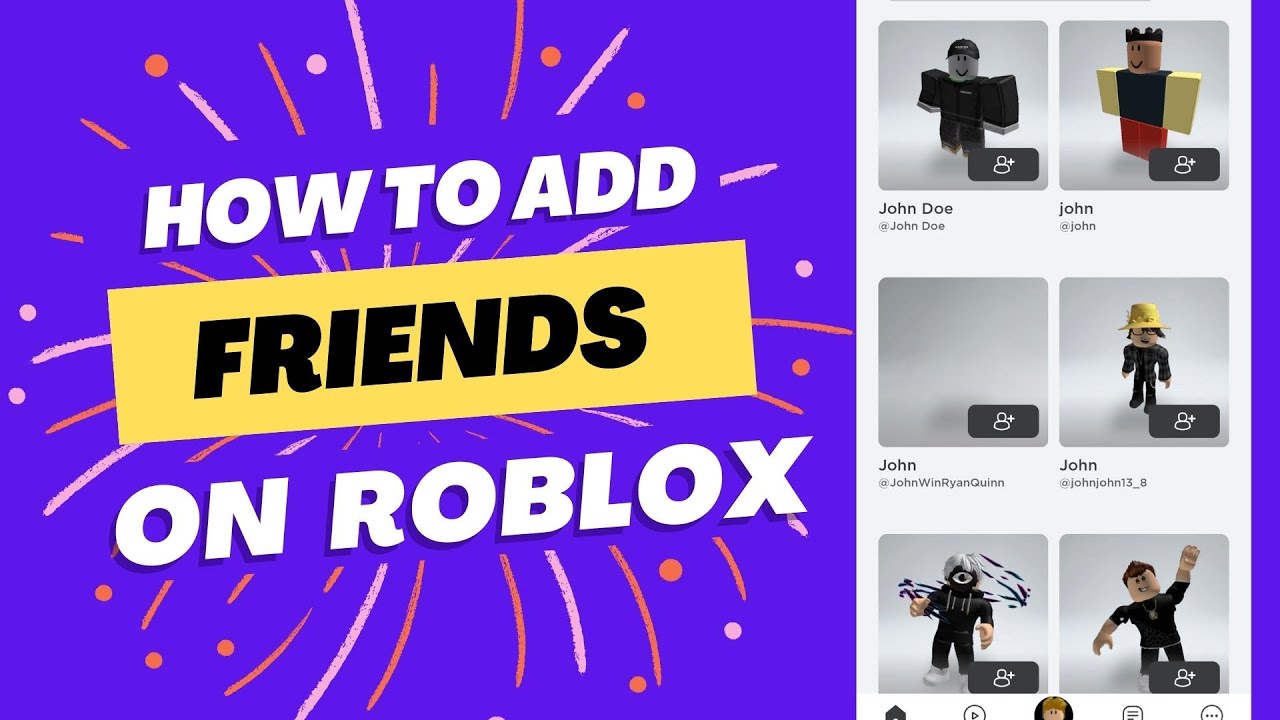
Open the Roblox app on your smartphone or tablet and ensure you are logged into your account. At the bottom of the screen, you'll see a navigation bar. Look for the 'Chat' icon, which often looks like a speech bubble. Tapping this will bring up your chat and friends interface. From here, you'll see an icon that typically represents adding a friend, often a silhouette of a person with a plus sign. Tap this icon to open the search function.
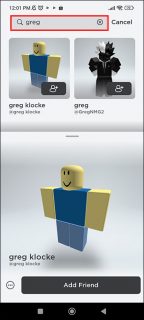
Similar to the PC version, a search bar will appear. Enter your friend's precise Roblox username into this bar. The app will then display potential matches. Locate your friend's profile and tap on it. On their profile page, you'll find the 'Add Friend' button. Tap it, and the request will be sent. Mobile gaming's convenience means you can connect with friends whether you're on a lunch break or waiting for an appointment, leveraging those small pockets of free time for social engagement.
Can You Add Friends on Roblox from within a Game?
Absolutely! Adding friends from directly within a game is incredibly convenient, especially when you've just met a cool player you want to team up with again. This method streamlines the process, allowing you to connect without leaving the action. It's a great way to foster those spontaneous social connections that make gaming so enjoyable for many adult players.
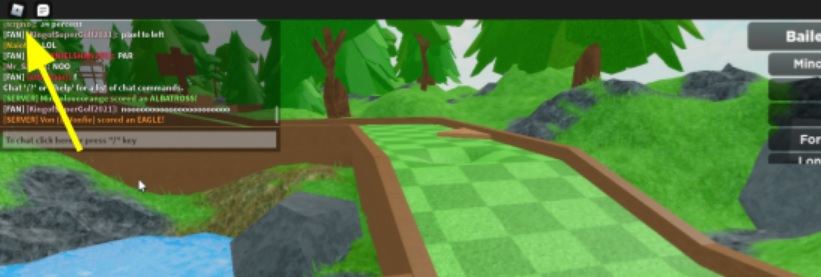
When you're playing a game on Roblox, you can usually access the in-game player list. This list is often found by pressing the 'Tab' key on PC or by tapping a dedicated 'Players' or 'Leaderboard' icon on mobile. From this list, you'll see the usernames of all players currently in the server. Locate the username of the player you wish to add. Clicking or tapping on their username will typically bring up a small pop-up menu or their mini-profile. Within this menu, you should see an 'Add Friend' option. Select this, and a friend request will be sent. This seamless integration ensures that promising new connections aren't lost once the game ends.
How Do Roblox Friend Requests Work and How Do You Accept Them?
Friend requests are a two-way street on Roblox, ensuring both parties consent to the connection. This system is a core component of Roblox's social framework, providing a layer of security and user control. Understanding how to manage these requests is crucial for an optimal social gaming experience, especially for players who value their privacy and time.
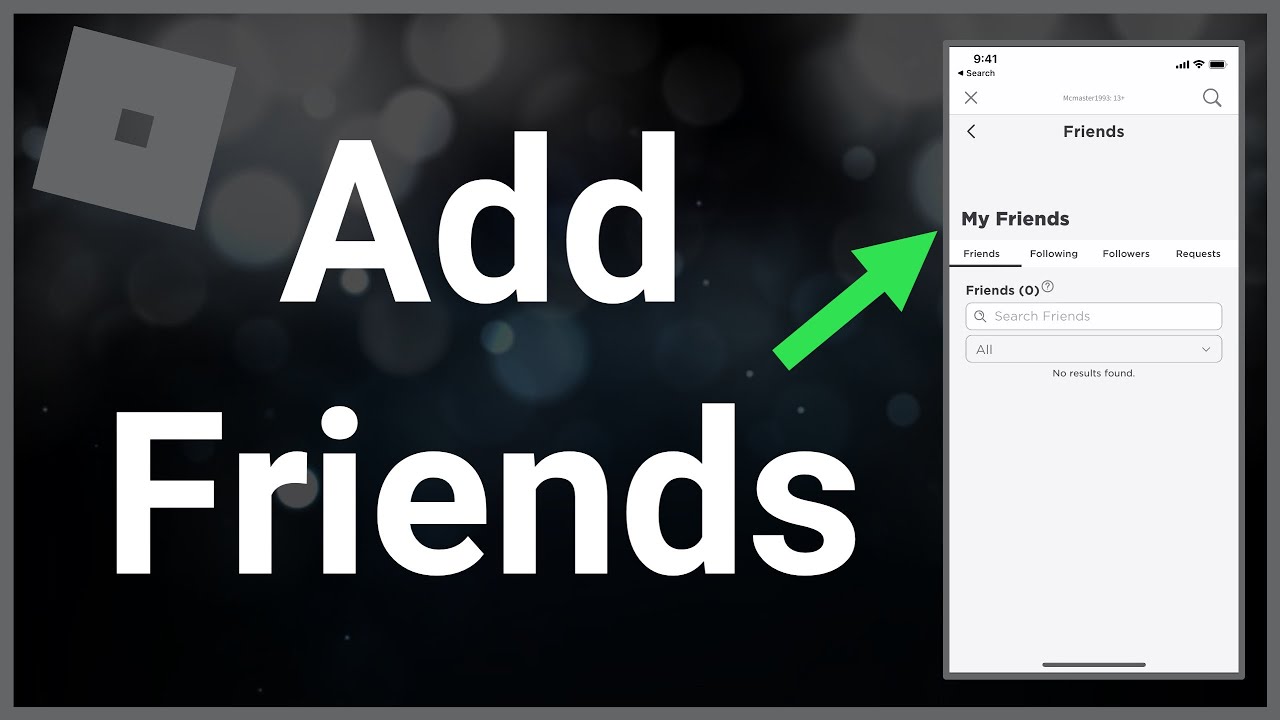
When someone sends you a friend request, you'll receive a notification. On PC, this often appears as a red number icon next to the 'Friends' tab or a pop-up. On mobile, you'll see a notification on the 'Chat' icon. To view and manage these requests, navigate to your 'Friends' page (on desktop) or the 'Chat' section (on mobile). Within these sections, there will be a dedicated tab or area labeled 'Requests' or 'Pending'. Here, you'll see a list of all incoming friend requests.
For each request, you'll typically have two options: 'Accept' or 'Decline'. If you recognize the user and wish to connect, click 'Accept'. If you don't know them, or prefer not to connect, you can 'Decline' the request. You can also 'Ignore' requests, which will remove them from your pending list without notifying the sender that you declined. Managing your friend requests regularly helps keep your social network clean and focused on people you genuinely want to play with, reflecting the common gamer desire for meaningful interactions.
What If You Can't Find a Friend on Roblox or Have Privacy Concerns?
Sometimes, finding a specific friend on Roblox can be tricky, or you might encounter issues due to privacy settings. Roblox offers robust privacy controls, which are great for user safety but can sometimes act as a barrier to adding friends if not configured correctly. This reflects a growing trend among US gamers, especially adults, who prioritize online safety and control over their digital interactions.
If you're having trouble finding a friend, first double-check their username for any typos. Roblox usernames are case-sensitive and must be exact. Another common issue is that your friend might have their privacy settings configured to prevent others from sending them friend requests. Roblox allows users to choose who can send them requests: 'Everyone', 'Friends of Friends', or 'No one'. If your friend has selected 'No one', you won't be able to send them a request. They would need to adjust their settings or send a request to you instead.
To check or adjust your own privacy settings, navigate to the 'Settings' section of your Roblox account (accessible via the gear icon). Under the 'Privacy' tab, you'll find options related to who can send you messages, chat with you, and send friend requests. Ensure your settings align with your preferences for social interaction. It's a good practice for all gamers to periodically review these settings to maintain a comfortable and secure online experience.
Are There Any Limits to How Many Friends You Can Have on Roblox?
Yes, Roblox does have a limit on the number of friends you can have, which is set at 200. This limit is in place to help manage server load and ensure the social features remain performant and responsive for all users. For the average gamer who balances life and play, this limit is usually more than sufficient for maintaining connections with close gaming companions.
While 200 friends might seem like a lot, active gamers who frequently meet new people in various experiences might eventually approach this cap. If you find yourself hitting the friend limit, you'll need to manage your existing friend list. This involves deciding which friends you interact with most frequently and potentially removing inactive or less-known connections. You can unfollow or unfriend users from their profile page or your Friends list. This process is important for keeping your social network current and relevant to your active gaming life. Think of it as spring cleaning for your digital social circle, ensuring that your valuable gaming time is spent with those who matter most.
Why Is Connecting with Friends on Roblox So Important for Gamers Today?
In 2026, social connection remains a primary driver for gaming, especially for the adult demographic. Roblox, being a massive social platform, embodies this trend perfectly. For many, gaming isn't just about beating levels or collecting items; it's about shared experiences, building communities, and unwinding with people you enjoy. US gaming statistics consistently show the high value placed on social interaction, with cooperative and multiplayer games leading engagement.
Adding friends on Roblox transforms the experience from solitary play into a vibrant, interactive adventure. You can team up to conquer obbies, collaborate on building projects, explore intricate role-playing worlds together, or just hang out and chat. This social aspect provides stress relief, strengthens bonds, and creates lasting memories. For busy adults, these shared moments are precious, offering a way to decompress and connect with others in a low-pressure environment. It also facilitates skill-building through cooperative play and allows for a more dynamic, evolving gameplay experience, making Roblox much more than just a game; it's a digital meeting place.
Troubleshooting Common Roblox Friend Request Issues
Even with a straightforward system, you might encounter a snag or two when trying to add friends on Roblox. It's a common pain point for gamers of all experience levels. Here's a quick rundown of typical issues and how to troubleshoot them, ensuring your social gaming experience remains smooth.
One frequent problem is an incorrect username. Always double-check spelling and capitalization. Roblox usernames are unique and precise. If you're still having trouble, ask your friend to verify their exact username for you. Another issue can be related to privacy settings, as discussed earlier. If you can't send a request, your friend might have their settings restricted. They'll need to adjust 'Who can send me friend requests' in their privacy settings to 'Everyone' or 'Friends of Friends'. Alternatively, they can send a request to you.
Sometimes, a friend request might appear to be stuck in a 'pending' state. This usually means the recipient hasn't yet accepted or declined it. Patience is key here, or a quick message to your friend outside of Roblox can prompt them to check their requests. Lastly, if you're approaching the 200-friend limit, you won't be able to add more until you remove some existing friends. Regularly cleaning up your friend list can prevent this issue from arising, keeping your social circle fresh and active.
How to Add Friends on Roblox: A Quick Reference
Adding friends on Roblox is a simple process, whether you're on PC, mobile, or even within a game. Here's a quick summary to keep you connected with your gaming crew:
- PC: Log in, go to 'Friends' tab, use search bar, click 'Add Friend' on their profile.
- Mobile: Open app, tap 'Chat' icon, tap 'Add Friend' icon, use search bar, tap 'Add Friend' on profile.
- In-Game: Access player list (Tab on PC), click player's name, select 'Add Friend'.
- Accepting Requests: Check 'Friends' (PC) or 'Chat' (Mobile) for pending requests, then 'Accept'.
- Troubleshooting: Verify usernames, check privacy settings, manage friend limit.
Remember, staying connected makes Roblox a far more enjoyable and engaging experience, transforming solo play into shared memories and collaborative fun. Don't let technicalities stand in the way of your next great adventure with friends!
FAQ Section
How do I send a friend request on Roblox if I only have their display name?
You cannot send a friend request using only a display name on Roblox. You need the user's exact, unique username to find them and send a request. Display names can be non-unique and changed frequently, so always ask for their specific Roblox username for accuracy.
Why can't I send a friend request to someone on Roblox?
There are a few reasons you might not be able to send a friend request: they might have their privacy settings configured to disallow requests from 'Everyone', you might have already sent them a request that is pending, or you might have already reached your own 200-friend limit. Double-check the username for typos too.
How do I know if someone accepted my Roblox friend request?
You'll receive a notification on Roblox once your friend request has been accepted. On PC, a red icon typically appears on the 'Friends' tab. On mobile, a notification often pops up, and they will appear in your 'Friends' list. You can also check your 'Outgoing Requests' to see if it's no longer there.
Can I unfriend someone on Roblox easily?
Yes, unfriending someone on Roblox is straightforward. Go to their profile page, and you'll see a button that says 'Unfriend'. Click or tap this, and they will be removed from your friend list. You can also unfollow them if you prefer not to see their activity without fully unfriending them.
What is the difference between following and befriending on Roblox?
Befriending on Roblox creates a mutual connection where both players are added to each other's friend lists, allowing for direct communication and easier game joining. Following is a one-way connection; you receive updates on their activity without them necessarily following you back. Many creators are followed by thousands without being friends.
My friend's username is inappropriate; can I still add them?
While Roblox has a filter for inappropriate usernames, if you encounter one, you can still add them by searching for their exact name. However, if a username violates Roblox's Community Standards, you should report it to Roblox moderation. Always prioritize your comfort and safety when interacting with others online.
Connecting with your friends on Roblox is more than just adding a name to a list; it's about unlocking shared experiences, collaborative fun, and those valuable moments of relaxation we all seek. For the busy adult gamer, these social interactions are a powerful way to unwind and build community. By following these simple steps, you can ensure your friend list is always ready for your next adventure, whether it's building a towering city or escaping a monster's grasp. So go ahead, link up with your crew, and make the most of your gaming time. What's your biggest gaming challenge when it comes to connecting with friends? Comment below!
Easily add friends on Roblox using their username or through games. Manage privacy settings to control who can send requests. Accept or deny incoming friend requests quickly. Utilize the Friends tab on desktop or mobile for all social interactions. Playing with friends enhances the Roblox experience significantly.
35



How To Add People Roblox Easily Your 2026 Guide Add Friend Roblox Xbox . How To Add Friends In Roblox Roblox How To Add Friends 8 1 466x320 . How To Add People Roblox Easily Your 2026 Guide V4 460px Add Friends On Roblox Step 11 . How To ADD FRIENDS In Roblox And PLAY Together In SECONDS YouTube . 3 Ways To Add Friends On Roblox WikiHow Aid596613 V4 728px Add Friends On Roblox Step 7



How To Add Friends In Roblox Add Your Friends Roblox Guide YouTube . How To Add Friends On Roblox PC And Console V4 728px Add Friends On Roblox Step 4 . How To Add Friends On Roblox Click On Add Friend . How To Add People Roblox Easily Your 2026 Guide How To Add Friends On. How To Add Friends On Roblox App YouTube


How To Add Friends On Roblox 2026 YouTube . How To Add And Manage Friends On Roblox Roblox Add Friends In Game. How To Add Friends In Roblox Roblox How To Add Friends 10 1 300x273 . How To Add Friends In Roblox How To Add Friends On Roblox Mobile . How To Add Friends On Roblox Add Friends Icon 2 768x703


How To Add People Roblox Easily Your 2026 Guide Roblox How To Add Friends 13 1024x389 . How To Add Friends On Roblox Friends On Roblox 450x299 . How To Add Friends On Roblox PC And Console V4 460px Add Friends On Roblox Step 3 . How To Add Friends In Roblox Mobile Stealthy Gaming AddText 02 16 06.32.37 1024x777 . How To Add People Roblox Easily Your 2026 Guide Add Friend Icon 1024x952

How To Add Friends In Roblox Roblox How To Add Friends 7 250x300 . How To Add People Roblox Easily Your 2026 Guide Roblox Pc Add Friends . How To Add Friends On Roblox Tutorial YouTube . How To Add Friends On Roblox Add Friend Get Basic Idea 1024x576 . How To Add People Roblox Easily Your 2026 Guide Add Friends Roblox




How To Add People Roblox Easily Your 2026 Guide . How To Add Friends On Roblox Quick And Easy YouTube . 3 Ways To Add Friends On Roblox WikiHow Aid596613 V4 728px Add Friends On Roblox Step 6 . How To Add People Roblox Easily Your 2026 Guide . How To Add People Roblox Easily Your 2026 Guide


How To Add Friends In Roblox In 2026 Complete New Guide The Droid Guy. How To Add Friends On Roblox 2026 YouTube Hqdefault . How To Add Friends In Roblox Roblox How To Add Friends 19 3 144x320 . How To Add Friends On Roblox Guide YouTube . HOW TO ADD FRIENDS ON ROBLOX 2024 YouTube