Navigating the dynamic world of Roblox to enable voice chat can feel like a quest, especially for adult gamers balancing life, work, and precious gaming time. This comprehensive guide cuts through the noise, offering clear, actionable steps on how to get the mic in Roblox. We understand you value straightforward solutions to enhance your social gaming experience, build connections, and simply enjoy your downtime. With recent updates, Roblox's Spatial Voice is more accessible than ever, allowing millions of US gamers to communicate naturally in their favorite experiences. This article dives into age verification, settings adjustments, and troubleshooting tips, ensuring you can join the conversation effortlessly. Discover how to leverage this feature for better team play, deeper immersion, and stress-free social interaction without the typical gaming setup headaches. Get ready to connect and elevate your Roblox adventures in 2026.
How do I enable voice chat in Roblox?
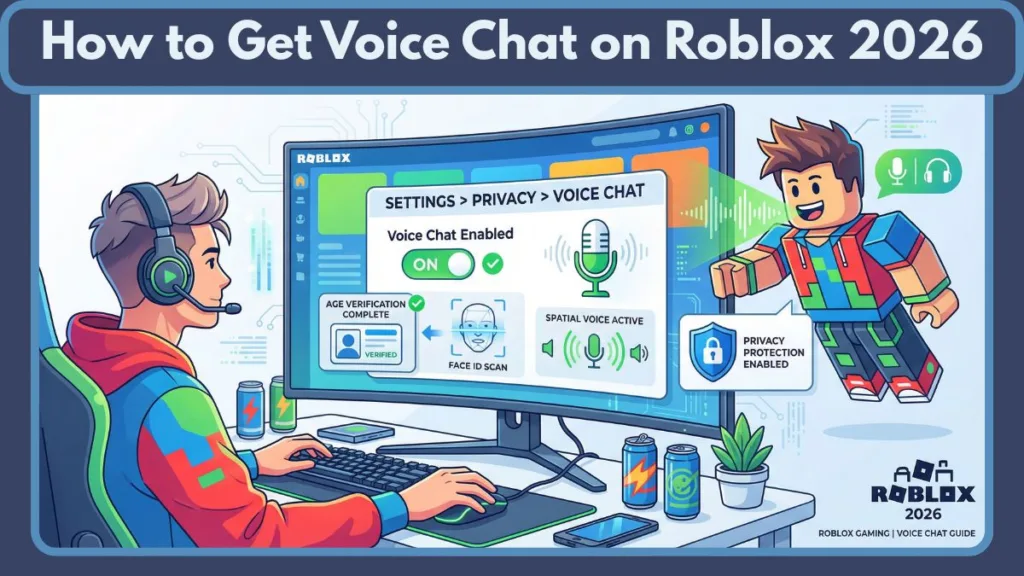
To enable voice chat, also known as Spatial Voice, in Roblox, you first need to be age-verified as 13 or older. Once verified, go to your Roblox Settings, then navigate to the Privacy tab. You'll find a toggle for 'Enable Voice Chat' there. Simply switch it on. Remember, you might need to restart Roblox or the specific experience for the changes to take effect. This feature allows for immersive, proximity-based communication in supported games.
What are the age requirements for Roblox voice chat?
Roblox's Spatial Voice chat is exclusively available to users who have successfully verified they are 13 years of age or older. This is a crucial safety measure implemented by Roblox to comply with online child protection regulations. The verification process typically involves uploading a photo of a government-issued ID and a selfie, which Roblox uses to confirm your age without storing sensitive data long-term. Without age verification, the voice chat option will not appear in your settings.
Why isn't my mic working in Roblox even after enabling voice chat?
Several factors can prevent your mic from working. First, check your system's sound settings to ensure your microphone is selected as the default input device and isn't muted. In Roblox, verify that you've granted microphone permissions to the Roblox application in your device's privacy settings (e.g., Windows Privacy settings, iOS/Android App Permissions). Also, ensure the specific Roblox experience you're playing supports Spatial Voice, as not all games have it enabled. Finally, a quick restart of Roblox or your device often resolves minor glitches.
Is Roblox voice chat safe for older players and how does it work?
Roblox implements several safety measures for voice chat, including moderation, reporting tools, and the 13+ age restriction. For adult gamers (average age ~36, according to recent stats), it offers a more dynamic social experience akin to Discord, but directly within the game world. Spatial Voice means your voice gets louder or softer depending on your proximity to other players in the game, making conversations feel more natural and immersive. You can easily mute individuals or report inappropriate behavior, contributing to a safer environment.
Can I use Roblox voice chat on mobile devices?
Yes, absolutely! Roblox's Spatial Voice chat is designed to be cross-platform, meaning you can utilize it on supported mobile devices (iOS and Android) just as you would on PC. The age verification process is the same, and once enabled, you'll find the voice chat icon in compatible games. This mobile accessibility aligns with the growing trend of mobile gaming, where many US gamers now log 10+ hours a week on their phones, allowing seamless social interaction whether you're at your desk or on the go.
Are there any specific games that support Roblox Spatial Voice chat?
Yes, many popular and emerging Roblox experiences now support Spatial Voice chat. Developers must actively integrate the feature into their games. You can often find a 'Voice Chat Enabled' tag or icon on the game's description page. Popular genres like social hubs, role-playing games, and adventure maps are common places to find Spatial Voice. Exploring the 'Experiences' page on Roblox and filtering for games that promote this feature is a great way to discover new places to chat. It enhances immersion in games like 'Adopt Me!' or 'Brookhaven RP'.
What if I encounter technical issues with my mic while playing Roblox?
If you're facing technical glitches, start with the basics: ensure your microphone is properly connected and not muted physically or in your operating system settings. Verify that Roblox has permission to access your microphone. Try updating your audio drivers to the latest version. If the problem persists, test your mic with another application (like Discord or a voice recorder) to determine if it's a Roblox-specific issue or a broader hardware/driver problem. Roblox's support page also offers troubleshooting guides, and sometimes reinstalling Roblox can clear up persistent issues. It's all about methodically checking potential points of failure.
For many adult gamers, our time for digital adventures is precious. We often juggle demanding jobs, family responsibilities, and the myriad of real-world tasks. When we finally sit down to game, whether it’s on a PC, console, or mobile, we’re looking for relaxation, genuine connection, and perhaps even a bit of skill-building. The clunky nature of text chat, especially in fast-paced or deeply social games, can break that immersion. This is where voice chat, particularly in expansive platforms like Roblox, becomes a game-changer. You want to connect, coordinate, and truly feel present in the virtual world without wrestling with complicated setups or dealing with endless hype.
Roblox, a platform that has truly blossomed into a social metaverse, understood this need. With 87% of US gamers engaging regularly, often for 10+ hours a week, and mobile gaming continuing its dominance, seamless social interaction is paramount. The ability to use your microphone in Roblox, through its Spatial Voice chat feature, transforms gameplay from mere interaction into natural conversation. No more typing out frantic commands during a co-op challenge or missing out on spontaneous jokes with new friends. This guide is built for you: the busy adult gamer who wants to know exactly how to get the mic in Roblox, troubleshoot any snags, and jump straight into the fun without the usual tech headaches. We're cutting through the noise to give you direct, actionable steps to enhance your Roblox experience today.
How to Get the Mic in Roblox: The Essential First Steps
Before you can start chatting away with your friends in your favorite Roblox experiences, there are a couple of crucial prerequisites. Roblox has implemented these to ensure a safe and age-appropriate environment, especially given the platform’s diverse user base. For adult gamers who value clarity and security, these steps are straightforward.
The primary requirement is age verification. Roblox Spatial Voice is strictly for users who are 13 years of age or older. This isn't just a number; it's a commitment to fostering a more mature and moderated communication space. The verification process typically involves uploading a photo of a government-issued ID (like a driver's license or passport) and a selfie. Roblox uses advanced technology to confirm your age without storing your sensitive identification documents long-term, which is a big win for privacy-conscious users. Without successful age verification, the option to enable voice chat simply won't appear in your settings.
Beyond age verification, ensure your device has a working microphone. Most modern laptops, smartphones, and gaming headsets come equipped with quality mics. If you're using an external microphone, ensure it's properly plugged in and recognized by your operating system. Check your system's sound settings to confirm your desired microphone is set as the default input device and isn't muted.
What Exactly is Roblox Spatial Voice Chat and How Does it Work?
Roblox Spatial Voice chat is a groundbreaking feature that brings a new layer of realism to in-game communication. Unlike traditional party chat where everyone hears everyone at the same volume, Spatial Voice simulates real-world acoustics. This means your voice becomes louder or softer depending on your virtual proximity to other players within a supported experience.
Imagine you're in a virtual park. If a friend is standing right next to your avatar, you'll hear them clearly. If they wander off across the park, their voice will fade until it's out of earshot. This creates incredibly immersive and natural social interactions, making conversations flow more authentically. It's particularly fantastic for role-playing games, social hubs, and team-based activities where tactical communication needs to be precise and localized. For gamers who appreciate deep immersion and value natural social cues, this is a significant enhancement.
Who is Eligible for Roblox Voice Chat and Why the Age Restriction?
As mentioned, eligibility for Roblox voice chat, or Spatial Voice, rests squarely on age verification. Only users confirmed to be 13 years old or older can access this feature. This age restriction isn't arbitrary; it's a critical component of Roblox's commitment to user safety and compliance with global online protection regulations like COPPA (Children's Online Privacy Protection Act) in the US.
For adult gamers, this restriction provides a layer of reassurance. It means that when you engage in voice chat, you're interacting with a demographic that has gone through a verification process. This helps foster a more mature and appropriate environment, reducing the likelihood of encountering younger, unmoderated interactions that can sometimes plague online platforms. It's about creating spaces where gamers can connect meaningfully without unnecessary distractions or concerns.
Step-by-Step: Enabling Spatial Voice in Your Roblox Settings
Once you've successfully completed the age verification process and confirmed your mic is ready, enabling Spatial Voice in Roblox is a breeze. Follow these simple steps:
- Log in to Your Roblox Account: Open the Roblox application or website and log in with your credentials.
- Access Settings:
- On the website: Click the gear icon in the top-right corner, then select "Settings."
- In the app: Click the three dots (More) icon, then select "Settings."
- Navigate to Privacy: In the Settings menu, look for and click on the "Privacy" tab.
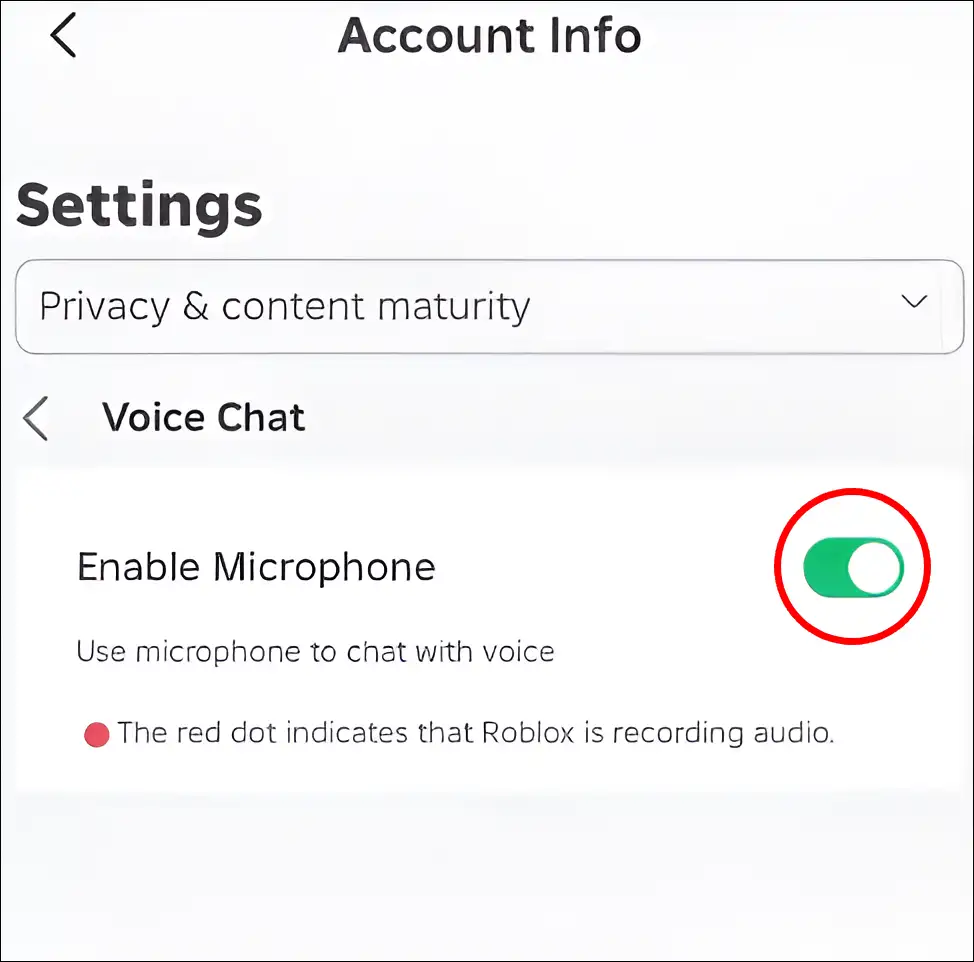
- Enable Voice Chat: Under the "Privacy" section, scroll down until you see the "Enable Voice Chat" toggle. If you've been age-verified, this toggle will be present. Click it to turn it ON.
- Confirm Changes: You might need to confirm your choice. Once enabled, consider restarting the Roblox application or the specific game you wish to play to ensure the changes are fully applied.
It's that simple! For adult gamers, this straightforward setup means less time fumbling with menus and more time enjoying the game, a critical factor when balancing gaming with life's other demands.
Troubleshooting Common Roblox Mic Problems: "My Voice Isn't Working!"
Even with everything set up correctly, sometimes technology can be finicky. If you find your voice isn't transmitting, don't fret. Here’s a troubleshooting checklist to get you back in the conversation:
- Check System-Level Mic Settings:
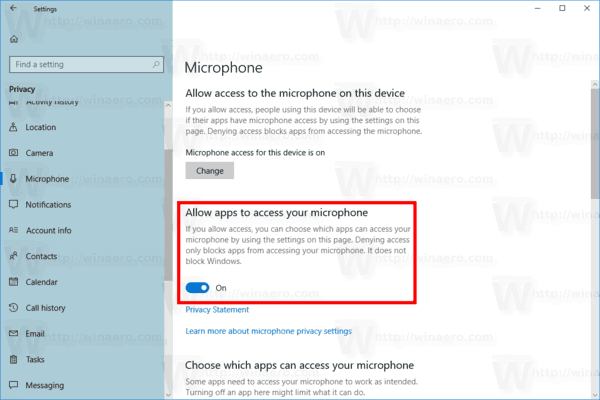
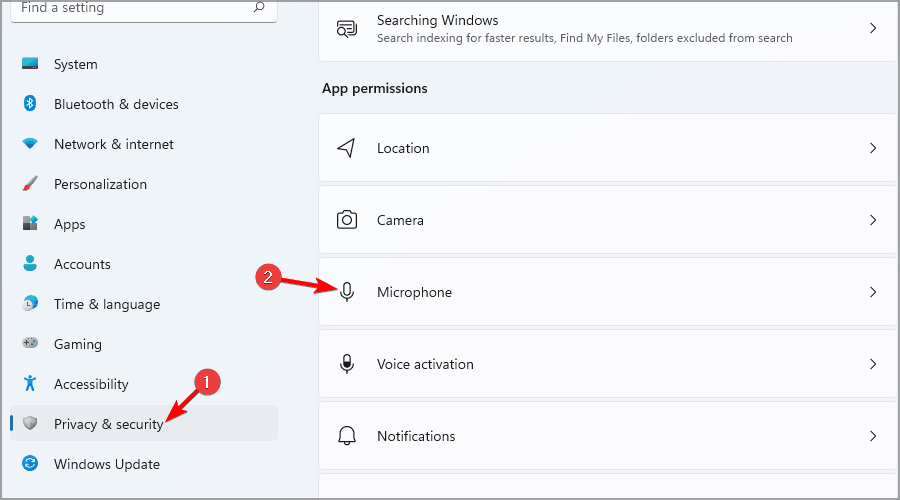
- Windows: Go to Settings > System > Sound > Input. Ensure your preferred microphone is selected and its volume is up. Also check Settings > Privacy & security > Microphone to ensure apps have access and Roblox is listed.
- macOS: Go to System Settings > Sound > Input. Select your mic and adjust input volume.
- Mobile (iOS/Android): Go to your device's Settings > Apps > Roblox > Permissions (or Privacy) and ensure Microphone access is granted.
- Physical Mute: Many headsets have a physical mute button or a mute switch on the cable. Double-check this isn't engaged.
- In-Game Mute: While in a Roblox experience, look for a microphone icon near your avatar or in a UI panel. Ensure it's not muted.
- Roblox Game Support: Not all Roblox experiences have Spatial Voice enabled. Confirm the game you're playing actually supports the feature. Look for indicators on the game's description page.
- Update Audio Drivers: Outdated audio drivers can cause mic issues. Visit your computer's manufacturer website or your sound card's website to download and install the latest drivers.
- Restart Roblox/Device: A classic tech solution, but often effective. Close Roblox completely and reopen it. If problems persist, a full device restart can sometimes clear up software conflicts.
- Test Your Mic Elsewhere: Use another application like Discord, Zoom, or a simple voice recorder to confirm your microphone is working correctly outside of Roblox. This helps determine if the issue is Roblox-specific or a broader hardware/software problem.
Can I Use Roblox Voice Chat on My Mobile Device or Console?
Yes, absolutely! Roblox is designed as a truly cross-platform experience, and its Spatial Voice chat is no exception. Whether you're gaming on an iPhone, an Android tablet, or a PC, the ability to communicate vocally is seamless, provided you've met the age verification requirements.
This mobile compatibility is fantastic news for the significant portion of US gamers who spend considerable time on their phones – often 10+ hours a week, according to recent trends. It means you can stay connected with your friends and guild members, coordinate strategies, or simply hang out in a social game, regardless of whether you're at your desktop or on the go. The setup process for age verification and enabling voice chat remains consistent across mobile platforms, ensuring a unified user experience. Unfortunately, as of late 2025/early 2026, direct voice chat functionality is not yet available on console versions of Roblox (like Xbox), but this is a feature many anticipate for future updates.
Which Roblox Games Support Spatial Voice Chat, and How Do I Find Them?
The number of Roblox experiences supporting Spatial Voice chat is growing rapidly as developers embrace the feature. However, it's up to individual game creators to implement it, so not every game will have it enabled. To find games that support voice chat, look for a few key indicators:
- Game Description Page: Many developers will explicitly mention "Spatial Voice Enabled" or include a voice chat icon in their game's description or thumbnail.
- Dedicated Voice Chat Hubs: Roblox itself often promotes experiences specifically designed to showcase Spatial Voice. Look for official announcements or curated lists on the Roblox platform.
- Popular Social Games: Genres like role-playing games (RPGs), social hangouts, and simulation titles are prime candidates. Games like "Adopt Me!", "Brookhaven RP", or various "Hangout" experiences are often among the first to integrate new social features.
- Search and Filters: Keep an eye on the Roblox "Experiences" page for potential filters that might allow you to specifically search for voice-enabled games in the future, as Roblox is always enhancing its discovery features.
Exploring these games adds a whole new dimension to your Roblox adventures, making interactions feel far more personal and dynamic.
Beyond Chatting: How Voice Improves Social Gaming and Skill Building
For the adult gamer, voice chat in Roblox isn't just about casual conversation; it's a powerful tool that enhances multiple aspects of the gaming experience. It provides a more efficient way to communicate, which is crucial when your gaming time is limited.
- Enhanced Social Connection: Voice allows for nuance, tone, and immediate responses that text chat simply can't replicate. It deepens friendships and makes meeting new players feel more natural and engaging.
- Improved Team Play: In competitive or cooperative experiences, clear and instant voice communication can be the difference between victory and defeat. Coordinating strategies, calling out enemy positions, or planning joint actions becomes fluid and intuitive.
- Stress Relief and Relaxation: For many, gaming is a form of escape and relaxation. Voice chat facilitates lighthearted banter, shared laughter, and a sense of camaraderie that genuinely melts away stress.
- Skill-Building: While Roblox might seem casual, many games require strategy and quick thinking. Voice chat can help refine communication skills, leadership, and teamwork, applicable skills far beyond the virtual world.
- Authentic Immersion: Spatial Voice makes the game world feel more alive. Hearing a friend's voice get softer as they walk away, or overhearing a distant conversation, adds a layer of authenticity that text chat cannot match.
Roblox Voice Chat Safety: What You Need to Know to Game Responsibly
Roblox is deeply committed to providing a safe environment, and this extends to voice chat. For adults who are often concerned about online interactions, understanding the safety measures in place can provide peace of mind:
- Age Verification: The 13+ age restriction is the foundational safety layer, ensuring interactions are within a more mature demographic.
- Moderation: Roblox employs both AI and human moderators to monitor voice chat for inappropriate content, though no system is foolproof.
- Reporting Tools: You can easily report any player who is using voice chat inappropriately. This is crucial for maintaining a positive community. Reports are reviewed by Roblox staff.
- Muting & Blocking: If someone is bothering you, you can instantly mute them in-game or block them entirely from your profile. Muting prevents you from hearing their voice, while blocking prevents all forms of communication and interaction.
- Privacy Settings: You always have control over whether voice chat is enabled on your account. You can toggle it off at any time if you prefer to game without it.
By using these tools and being aware of your surroundings, adult gamers can enjoy the social benefits of voice chat responsibly.
Maximizing Your Roblox Voice Experience: Tips for Optimal Performance
To ensure your Roblox voice chat experience is as smooth and enjoyable as possible, consider these performance optimization tips, especially valuable for gamers who want value for their time and money:
- Quality Headset: Invest in a decent gaming headset with a clear microphone. You don't need to break the bank, but a good quality mic will make your voice clearer to others, enhancing communication.
- Stable Internet Connection: Voice chat, like all online gaming, relies on a stable internet connection. Wi-Fi can work, but a wired Ethernet connection is always superior for reducing latency and dropped audio.
- Minimize Background Noise: Play in a quiet environment. If that's not possible, many modern headsets feature noise-canceling microphones which can significantly improve your voice clarity for others.
- Check In-Game Settings: Some Roblox experiences might have their own in-game audio settings where you can adjust voice chat volume or sensitivity.
- Monitor Your Mic Level: Periodically check your microphone input level in your system settings to ensure it’s not too low (making you hard to hear) or too high (causing distortion).
By paying attention to these small details, you can ensure your voice chat experience is top-notch, allowing you to fully immerse yourself in the social aspects of Roblox.
Conclusion
Getting your mic set up in Roblox for Spatial Voice chat is a straightforward process that significantly enhances the social and immersive aspects of the platform. For adult gamers balancing life's demands, this feature provides a direct, efficient, and natural way to connect with friends, coordinate in games, and simply enjoy some well-deserved relaxation. By understanding the age verification requirements, navigating your privacy settings, and knowing how to troubleshoot common issues, you're well-equipped to dive into a more interactive Roblox experience. The shift from text-only communication to dynamic, proximity-based voice chat truly transforms gameplay, making it easier than ever to build communities and foster genuine connections within the virtual world.
What's your biggest gaming challenge when it comes to social features or tech setup? Comment below and let us know!
Frequently Asked Questions About Roblox Voice Chat
Do I need a special headset for Roblox voice chat?
No, you don't need a special headset. Any microphone recognized by your device (built-in laptop mic, smartphone mic, or standard gaming headset) will work. A quality headset can improve clarity, but it's not a requirement for functionality.
Can parents control their child's access to Roblox voice chat?
Yes, parents can manage their child's access. The primary control is the age verification process (13+ only). If a child's account is not age-verified, they cannot access voice chat. Parents can also restrict communication settings in their child's account settings.
Is Roblox voice chat free to use?
Yes, Roblox Spatial Voice chat is completely free to use once you meet the age verification requirements. There are no additional Robux or premium subscriptions needed to access the feature.
How do I report someone for inappropriate voice chat?
To report inappropriate voice chat, look for the in-game reporting tools, usually accessible by clicking on a player's avatar or their name in a player list. Select the appropriate reason for reporting, and Roblox moderators will review the incident. Your reports help keep the community safe.
What if I don't have a government ID for age verification?
Unfortunately, a valid government-issued photo ID is currently required for Roblox's age verification process to access Spatial Voice. This method ensures robust age confirmation in compliance with regulations. Without it, you won't be able to enable the voice chat feature.
Can I turn off Spatial Voice in specific games?
While you can disable Spatial Voice globally in your Roblox privacy settings, there isn't typically an option to turn it off for individual games while keeping it on for others. If you enter a game with voice chat enabled and wish to mute it, you can often do so through that game's specific audio settings or by muting individual players.
Roblox voice chat age verification process. Steps to enable Spatial Voice in Roblox settings. Troubleshooting common mic issues in Roblox. Benefits of using voice chat for social gaming. Understanding Roblox's safety features for voice chat. Essential requirements for Roblox mic access.
35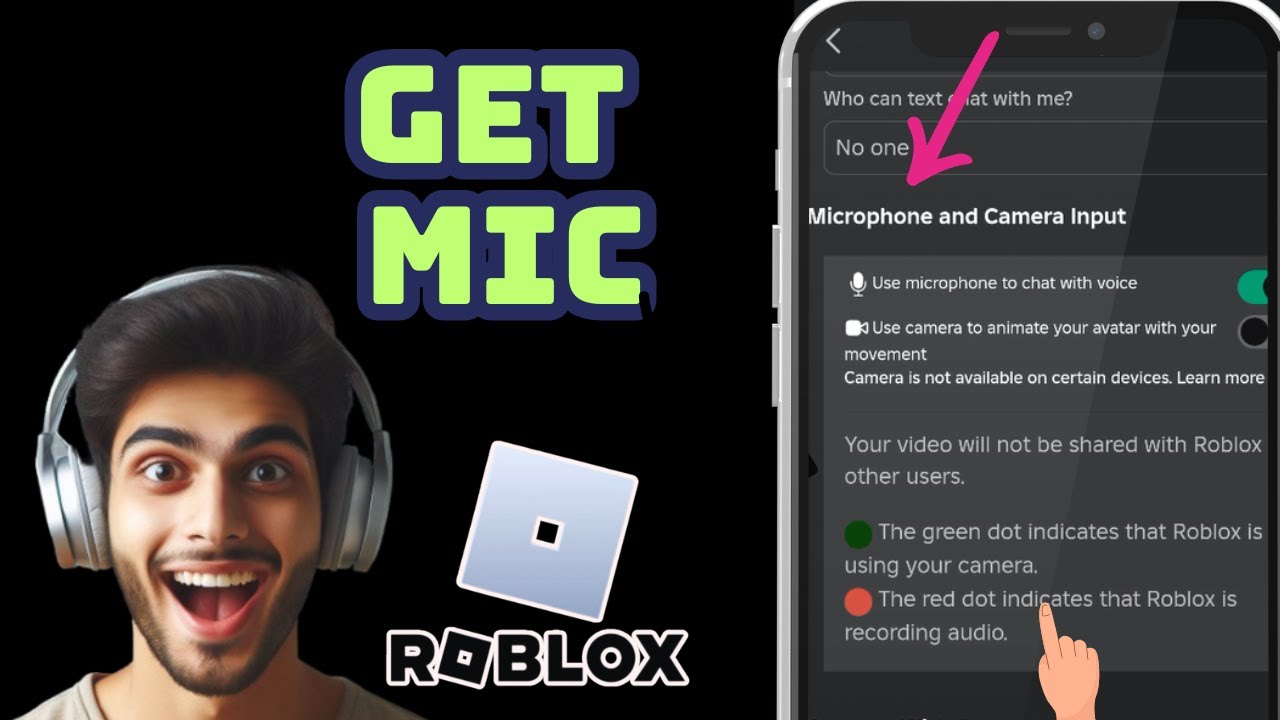

:max_bytes(150000):strip_icc()/Roblox-microphone-toggle-dc5112a0520b4494a4a3acf74872c09b.jpg)

How To Actually Get Or Enable Mic Or Vc On Roblox Mobile Enable . How To Turn On Mic In Roblox 2026 YouTube . How Do You Turn Your Mic On In Roblox Roblox Microphone Toggle . How To Turn On The Microphone On Roblox Voice Chat Enable Roblox App. How To Play Music Through Your Mic In Roblox 2026 Tutorial YouTube



HOW TO REMOVE MIC ABOVE HEAD IN ROBLOX 2026 FULL GUIDE YouTube . ROBLOX HOW TO OPEN MIC ON ROBLOX FULL GUIDE YouTube . How To Activate Mic Or Voice Chat On Roblox Get Roblox VOICE CHAT . How To Play Music Through Mic On Roblox Guide 2026 YouTube . How To Actually Enable Microphone On Roblox Roblox Mic Tutorial


How To Activate Mic Or Voice Chat On Roblox Get Roblox VOICE CHAT . How To Actually Turn On Microphone Input On Roblox Mobile Or Pc . HOW TO FIX MIC NOT WORKING ON ROBLOX MOBILE 2026 EASY FIX YouTube . How To Fix Microphone Not Working On Roblox PC Easy Guide 2026 YouTube . How To Get Mic On Roblox Mobile Enable Voice Chat On Roblox YouTube


How To Play Music And Sounds Through Mic In Roblox 2026 YouTube . How To Allow Roblox To Access Microphone On PC New Update YouTube . How To Get Mic On Roblox In IPad Use Roblox Mic Tutorial IPhone YouTube . How To Turn ON Your Mic In Roblox Easy Guide Roblox Mic Tutorial Hqdefault . How To ACTUALLY Turn On Mic For Voice Chat On Roblox Mobile Or Pc


How To Turn On Mic On Roblox How To Enable And Use Voice Chat On . How To Turn On The Microphone On Roblox Voice Chat Image 139 . How To Allow Roblox To Use Microphone 2026 Full Guide YouTube . How To Use A Microphone In Roblox Step By Step Hollyland Image 138 . How To Get Voice Chat On Roblox 2026 Enable VC Without ID Izoate How To Enable Voice Chat In Roblox 2026


How To Get Microphone On Roblox Enable Roblox Mic Tutorial YouTube . How To Play Music Through Your Mic On Roblox Step By Step YouTube . Teaching U How To Get Mic In Roblox YouTube Hqdefault . How To Message On Roblox 2026 A Quick Guide . How To Get Voice Chat In Roblox




How To Enable And Set Up Mic On Roblox PC Voice Chat Tutorial YouTube . Talk On Roblox A Guide To Using Your Mic Image 161 . How To GET MIC On ROBLOX Full Guide YouTube . How To Get Voice Chat On Roblox In 2026 YouTube . How To Turn On The Mic In Roblox For Android And IPhone Images 6 1 1144x644